73 minutes
UChat
Posted by
WhatsApp Error Codes: Complete Cloud API Reference and Fix Guide
73 minutes
Posted by
UChat

Complete as of August 26, 2026: 93 documented records covering 85 scope-specific codes or ranges (83 distinct numeric values). This guide covers the WhatsApp Business Platform and Cloud API—not errors in the consumer WhatsApp app.
When a WhatsApp request fails, search this page for the exact numeric code. Then read the complete error details: the same code can have more than one meaning, and the details often identify the actual cause. Avoid blind retry loops. Fix the cause, respect a waiting period, or escalate with sanitized evidence as the entry recommends.
Security note: Keep the code, complete details, timestamp, operation or template context, and a non-secret trace ID. Never paste access tokens, API keys, webhook secrets, phone numbers, or customer message content into a public ticket or screenshot.
How to read a WhatsApp error response
Look at the API or webhook response as a whole. The numeric code is the lookup key, while error_data.details often distinguishes the real cause. Preserve fbtrace_id when Meta provides it because support teams can use that non-secret reference to trace the failed request.
A useful incident record contains:
the exact code and complete details;
the timestamp and timezone;
the endpoint, template, media operation, or failed automation node;
the affected connection without exposing its credentials;
the Meta trace ID and a sanitized request or webhook sample.
Quick action guide
Action | What it means |
|---|---|
Fix first | Correct the payload, template, permission, registration, or billing problem before sending again. |
Wait | Respect a documented rate, maintenance, review, or synchronization period. |
Retry later | Retry a valid operation with a bounded policy after checking status and cause. |
Do not retry | Honor a block, opt-out, recipient restriction, or duplicate request. |
Check account | Review WhatsApp Manager, quality, policy, eligibility, registration, or payment state. |
Escalate | Preserve sanitized evidence and contact the owner of the failing layer. |
How to troubleshoot a WhatsApp error in UChat
Open the affected bot, then go to Tools → Error Logs. UChat also maintains a public Error Logs reference.
Filter by time, subflow, user, or description. UChat currently retains these logs for two weeks.
Preserve the exact description and timestamp.
Click the Node value in the log row to return to the affected subflow with the failed node selected.
Inspect the node, resolved variables, WhatsApp connection, template, or media input before changing anything.
Correct one cause at a time, then test with a controlled contact.
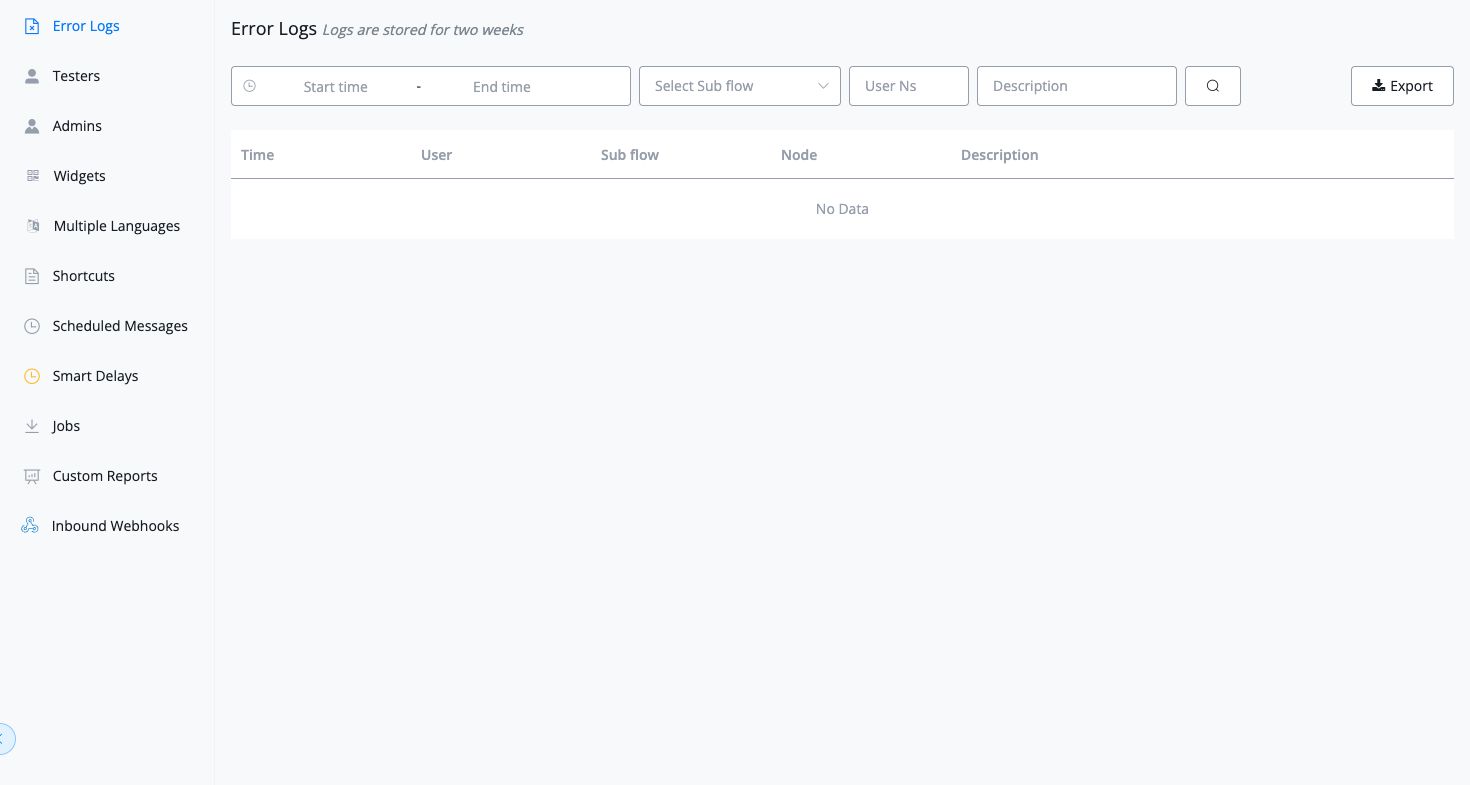
UChat Error Logs navigation, retention notice, filters, and table fields. The screenshot contains no customer or account data.
Create a proactive error route
For errors that matter operationally, add an Automation → Triggers → Error logged trigger. The current trigger can match one or more keywords in the error message and save Error Message into a user field. It fires at most once per hour for each bot user, so treat it as an incident-routing signal rather than a record of every failed request. From there, route safe context to an operator or a recovery workflow without including credentials or customer message content.
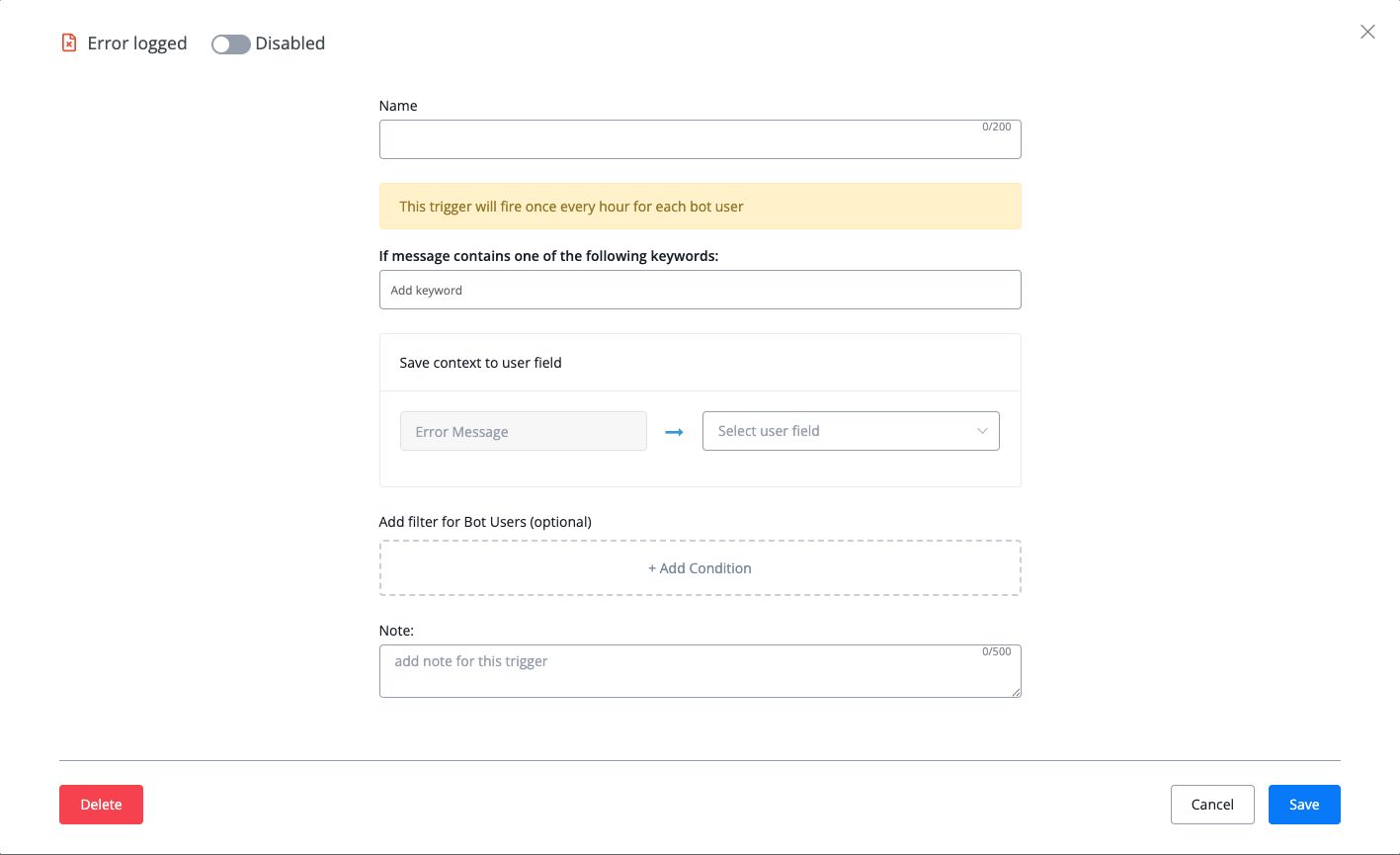
The current Error logged trigger supports keyword matching and saving Error Message to a user field.
Want to turn important WhatsApp failures into visible, routable workflows? Explore UChat's visual Flow Builder, compare UChat plans, or start a free UChat trial.
Complete WhatsApp error-code catalog
Use Ctrl+F or Cmd+F to search for a code. Codes that Meta documents more than once have separate entries; use the details and operation context to choose the right one.
Authentication and permission errors
Account, policy and billing errors
Rate, throughput and quality limits
Delivery and recipient errors
Request and payload errors
Template errors
Media errors
WhatsApp Flow errors
Phone registration and migration errors
Template insights and synchronization errors
Temporary platform errors
Marketing Messages API errors
Authentication and permission errors
Error 0: Meta could not authenticate the app user
Scope: Cloud API
Meta category: Authorization errors
First action: Fix the cause before retrying
Likely owner: Access token and app-user authorization
Obtain a valid token for an authorized app user and update the connection securely.
Possible causes
The access token expired or was invalidated.
The app user changed an access setting that prevents the app from using their data.
Check first: Check the token used by the affected connection and confirm that the app user still grants the required access.
Retry guidance: Retry only after replacing or restoring the invalid authorization.
In UChat: Use Tools → Error Logs to preserve the exact code, complete description, timestamp, subflow, user, and node. Click Node to return to the selected failed node before changing the setup.
Escalation: Escalate with sanitized request or webhook details and the Meta trace ID when the documented checks do not explain a reproducible failure.
Error 3: The app lacks a capability or permission required by the endpoint
Scope: Cloud API
Meta category: Authorization errors
First action: Fix the cause before retrying
Likely owner: Meta app permissions and capability eligibility
Grant the missing permission or use an eligible app and business configuration.
Possible causes
The token does not include a required permission.
The app or business is not eligible for the requested capability.
Check first: Compare the token's granted permissions and app eligibility with the current endpoint requirements.
Retry guidance: Do not retry unchanged; repair the permission or eligibility issue first.
In UChat: Use Tools → Error Logs to preserve the exact code, complete description, timestamp, subflow, user, and node. Click Node to return to the selected failed node before changing the setup.
Escalation: Escalate with sanitized request or webhook details and the Meta trace ID when the documented checks do not explain a reproducible failure.
Error 10: A required permission, allowlist entry, or API eligibility condition is missing
Scope: Cloud API
Meta category: Authorization errors
First action: Fix the cause before retrying
Likely owner: Meta permissions, Flow allowlisting, or API eligibility
Restore the permission, allowlist the correct phone number, or use an eligible endpoint configuration.
Possible causes
A permission was not granted or was removed.
A WhatsApp Flows phone number is not allowlisted for the public-key operation.
The app is not eligible for the requested endpoint.
Check first: Use the access-token debugger, then verify the endpoint's eligibility and any WhatsApp Flows allowlist requirements.
Retry guidance: Retry only after the missing access condition is resolved.
In UChat: Use Tools → Error Logs to preserve the exact code, complete description, timestamp, subflow, user, and node. Click Node to return to the selected failed node before changing the setup.
Escalation: Escalate with sanitized request or webhook details and the Meta trace ID when the documented checks do not explain a reproducible failure.
Error 190: The access token is no longer valid
Scope: Cloud API
Meta category: Authorization errors
First action: Fix the cause before retrying
Likely owner: Connection credentials or Meta account access
Create or obtain a valid access token with the required permissions, update the affected connection securely, and test one controlled request.
Possible causes
The token expired.
The app user changed an access setting that stopped the app from using their data.
Check first: Confirm which token and WhatsApp connection handled the failed request, then check whether that token is still valid.
Retry guidance: Do not keep retrying with the same expired token. Retry only after the connection uses a valid token.
In UChat: Open Tools → Error Logs, filter by time or description, preserve the complete description and timestamp, then click Node to return to the affected subflow and selected failed node.
Escalation: Escalate if a newly issued token fails and the required permissions and account access have been verified.
Important context
Never paste an access token into a public forum, article comment or unredacted support screenshot.
Error 200: The request did not include an access token
Scope: Cloud API
Meta category: Authorization errors
First action: Fix the cause before retrying
Likely owner: Request authentication
Attach a valid access token through the supported secure connection method.
Possible causes
The Authorization header or token parameter was omitted.
A connection or custom request failed to attach its credential.
Check first: Inspect the sanitized request headers and the credential configuration for the endpoint that failed.
Retry guidance: Retry only after the request includes a valid token.
In UChat: Use Tools → Error Logs to preserve the exact code, complete description, timestamp, subflow, user, and node. Click Node to return to the selected failed node before changing the setup.
Escalation: Escalate with sanitized request or webhook details and the Meta trace ID when the documented checks do not explain a reproducible failure.
Important context
Some endpoints return code
190or104for related token problems, so preserve the exact response.
Error 200-299: The endpoint rejected the request because a required permission is missing
Scope: Cloud API
Meta category: Authorization errors
First action: Fix the cause before retrying
Likely owner: Meta app permissions
Restore the required permission or use a correctly authorized connection.
Possible causes
The token lacks an endpoint-specific permission.
A previously granted permission was removed.
Check first: Use the access-token debugger and the exact endpoint reference to identify the missing permission.
Retry guidance: Do not retry the same request until authorization is corrected.
In UChat: Use Tools → Error Logs to preserve the exact code, complete description, timestamp, subflow, user, and node. Click Node to return to the selected failed node before changing the setup.
Escalation: Escalate with sanitized request or webhook details and the Meta trace ID when the documented checks do not explain a reproducible failure.
Error 131005: The app does not currently have permission to use this endpoint
Scope: Cloud API
Meta category: Other errors
First action: Fix the cause before retrying
Likely owner: Meta app permissions and account access
Restore the required permission or use an appropriately authorized connection, then test the endpoint again.
Possible causes
A required permission was never granted.
A previously granted permission was removed.
The token belongs to an app user or system user without the required access.
Check first: Use Meta's access-token debugger and the endpoint documentation to compare the token's granted permissions with the endpoint's requirements.
Retry guidance: Do not retry unchanged. A permission error will remain until access is corrected.
In UChat: Open Tools → Error Logs, filter by time or description, preserve the complete description and timestamp, then click Node to return to the affected subflow and selected failed node.
Escalation: Escalate if the debugger shows the required permission and the correct business assets but Meta still rejects the endpoint.
Account, policy and billing errors
Error 368: Meta restricted or disabled the WhatsApp Business Account after a policy violation
Scope: Cloud API
Meta category: Integrity errors
First action: Check the WhatsApp account state
Likely owner: WhatsApp Business Account policy status
Resolve the policy issue through Meta's enforcement and review process.
Possible causes
The account is under platform-policy enforcement.
Check first: Review Policy Enforcement and account health for the affected WhatsApp Business Account.
Retry guidance: Do not use repeated sends to test a restricted account; retry only after Meta restores the required access.
In UChat: Use Tools → Error Logs to preserve the exact code, complete description, timestamp, subflow, user, and node. Click Node to return to the selected failed node before changing the setup.
Escalation: Escalate with sanitized request or webhook details and the Meta trace ID when the documented checks do not explain a reproducible failure.
Important context
UChat cannot remove a Meta account restriction.
Error 130497: This WhatsApp Business Account cannot message users in the destination country
Scope: Cloud API
Meta category: Integrity errors
First action: Check the WhatsApp account state
Likely owner: Country eligibility and WhatsApp messaging policy
Stop sends to restricted destinations and correct the account or audience configuration where policy permits.
Possible causes
Meta restricts that destination for the business category or account under current messaging policy.
Check first: Confirm the recipient country and compare it with current country availability for the business category.
Retry guidance: Do not retry the same destination while the country restriction applies.
In UChat: Use Tools → Error Logs to preserve the exact code, complete description, timestamp, subflow, user, and node. Click Node to return to the selected failed node before changing the setup.
Escalation: Escalate with sanitized request or webhook details and the Meta trace ID when the documented checks do not explain a reproducible failure.
Error 131031: Meta restricted the WhatsApp Business Account or could not verify account-related request data
Scope: Cloud API
Meta category: Integrity errors
First action: Check the WhatsApp account state
Likely owner: WhatsApp Business Account state or account verification data
Resolve the specific policy or verification issue shown by Meta. Treat the accompanying details as the deciding evidence.
Possible causes
The WhatsApp Business Account was restricted or disabled after a policy issue.
Data in the request does not match the account, such as an incorrect two-step verification PIN.
Check first: Review Policy Enforcement and account health, then compare the request's account-verification data with the WhatsApp Business Account.
Retry guidance: Do not repeatedly retry until the restriction or mismatched account data is resolved.
In UChat: Open Tools → Error Logs, filter by time or description, preserve the complete description and timestamp, then click Node to return to the affected subflow and selected failed node.
Escalation: Escalate through the appropriate Meta support path when Policy Enforcement or account health does not explain a reproducible lock.
Important context
This code is not proof of only a policy ban; Meta also documents request-data verification failure under the same code.
UChat cannot remove a Meta account restriction.
Error 131042: The WhatsApp Business Account has a billing or payment-account problem
Scope: Cloud API
Meta category: Other errors
First action: Check the WhatsApp account state
Likely owner: WhatsApp Business Account billing and eligibility
Correct the billing or account configuration identified by Meta before sending another production message.
Possible causes
No active payment account or credit line is attached.
The credit line reached its limit.
The account is deleted, suspended or missing required billing settings.
A Messaging For request is pending or declined.
Check first: Open the billing settings for the exact WhatsApp Business Account and verify its payment account, credit status, currency, timezone and account state.
Retry guidance: Retry only after the payment or account state is active and complete.
In UChat: Open Tools → Error Logs, filter by time or description, preserve the complete description and timestamp, then click Node to return to the affected subflow and selected failed node.
Escalation: Escalate to the account owner or Meta billing support when the displayed billing state is active but the error persists.
Important context
Do not publish or share credit-line identifiers, invoices or other sensitive billing data in screenshots.
Error 134011: The account has not accepted the WhatsApp Payments terms
Scope: Cloud API
Meta category: Other errors
First action: Fix the cause before retrying
Likely owner: WhatsApp Payments account acceptance
Have an authorized account owner accept the required terms.
Possible causes
Payments terms acceptance is still pending for the WABA.
Check first: Open the account-specific terms link provided in the error and verify the WABA state.
Retry guidance: Retry only after terms acceptance is complete.
In UChat: Use Tools → Error Logs to preserve the exact code, complete description, timestamp, subflow, user, and node. Click Node to return to the selected failed node before changing the setup.
Escalation: Escalate with sanitized request or webhook details and the Meta trace ID when the documented checks do not explain a reproducible failure.
Rate, throughput and quality limits
Error 4: The Meta app has reached its API-call rate limit
Scope: Cloud API
Meta category: Throttling errors
First action: Wait for the documented condition to clear
Likely owner: App-level API request volume
Reduce, cache, batch, or queue API queries at the app level.
Possible causes
The app made too many management or API requests during the current rate window.
Check first: Review Application Rate Limit in Meta App Dashboard and identify the request source creating the load.
Retry guidance: Retry after capacity returns; do not immediately replay the entire request backlog.
In UChat: Use Tools → Error Logs to preserve the exact code, complete description, timestamp, subflow, user, and node. Click Node to return to the selected failed node before changing the setup.
Escalation: Escalate with sanitized request or webhook details and the Meta trace ID when the documented checks do not explain a reproducible failure.
Error 80007: The WhatsApp Business Account has reached its API request rate limit
Scope: Cloud API
Meta category: Throttling errors
First action: Wait for the documented condition to clear
Likely owner: WABA-level API request volume
Reduce or queue queries for the affected WABA and remove duplicate polling.
Possible causes
Too many WABA-level API queries were made during the current rate window.
Check first: Separate WABA management-query volume from message throughput and pair limits.
Retry guidance: Retry later at a lower request rate.
In UChat: Use Tools → Error Logs to preserve the exact code, complete description, timestamp, subflow, user, and node. Click Node to return to the selected failed node before changing the setup.
Escalation: Escalate with sanitized request or webhook details and the Meta trace ID when the documented checks do not explain a reproducible failure.
Error 130429: The sending phone number has reached its current Cloud API throughput
Scope: Cloud API
Meta category: Throttling errors
First action: Wait for the documented condition to clear
Likely owner: Sending rate and phone-number throughput
Reduce or queue the sending rate so it stays below the number's current throughput, then let the backlog drain gradually.
Possible causes
The application is sending messages faster than the number's current throughput allows.
A traffic burst caused multiple sends to compete for the same phone-number capacity.
Check first: Measure the sending rate for the affected phone number and distinguish throughput from app-level, WABA and sender-recipient limits.
Retry guidance: Retry later through a bounded queue. Do not immediately replay the entire failed batch.
In UChat: Open Tools → Error Logs, filter by time or description, preserve the complete description and timestamp, then click Node to return to the affected subflow and selected failed node.
Escalation: Escalate if the measured rate is below the documented capacity and the error continues after Meta status is healthy.
Important context
Throughput is different from messaging limits, API request limits, template quality restrictions and the sender-recipient pair limit.
Error 131048: Meta restricted sending from this phone number because of message quality or recipient feedback
Scope: Cloud API
Meta category: Throttling errors
First action: Check the WhatsApp account state
Likely owner: Phone-number quality and messaging practices
Pause aggressive sending, improve targeting and template quality, and resolve any quality warnings shown by Meta.
Possible causes
Too many previous messages were blocked or reported as spam.
The sending number or its templates have a poor quality state.
Check first: Review the phone number and template quality status in WhatsApp Manager before changing the flow.
Retry guidance: Do not use rapid retries to push through the restriction. Resume only when the account state and sending strategy support it.
In UChat: Open Tools → Error Logs, filter by time or description, preserve the complete description and timestamp, then click Node to return to the affected subflow and selected failed node.
Escalation: Escalate to the account owner or Meta when the quality state and policy surfaces do not explain an ongoing restriction.
Important context
This is not the same as phone-number throughput code
130429or ecosystem-engagement code131049.UChat cannot override a Meta quality restriction.
Error 131056: The same sender sent too many messages to the same recipient in a short period
Scope: Cloud API
Meta category: Throttling errors
First action: Wait for the documented condition to clear
Likely owner: Flow pacing and sender-recipient pair rate
Add spacing, deduplicate triggers and coordinate concurrent automations before messaging the same contact again.
Possible causes
A flow sent several messages to one contact too quickly.
A retry loop or overlapping automations concentrated sends on the same sender-recipient pair.
Check first: Review the recent message timeline for that sender-recipient pair and look for loops, duplicated triggers or concurrent flows.
Retry guidance: Wait before retrying that recipient. The error does not prevent the number from messaging different recipients.
In UChat: Open Tools → Error Logs, filter by time or description, preserve the complete description and timestamp, then click Node to return to the affected subflow and selected failed node.
Escalation: Escalate if the pair's message history is below the documented limit and the error remains reproducible.
Important context
This is a sender-recipient pair limit, not the phone-number throughput limit represented by
130429.
Error 133016: The number made too many registration or deregistration attempts
Scope: Cloud API
Meta category: Throttling errors
First action: Wait for the documented condition to clear
Likely owner: Phone-number registration attempt limit
Wait until Meta unblocks the number, then make one controlled attempt.
Possible causes
Repeated setup attempts temporarily blocked further registration changes.
Check first: Stop automated or manual retries and confirm the affected number's registration history.
Retry guidance: Do not retry until the block clears.
In UChat: Use Tools → Error Logs to preserve the exact code, complete description, timestamp, subflow, user, and node. Click Node to return to the selected failed node before changing the setup.
Escalation: Escalate with sanitized request or webhook details and the Meta trace ID when the documented checks do not explain a reproducible failure.
Error 131064: Template-classification violations triggered an account messaging restriction
Scope: Cloud API
Meta category: Throttling errors
First action: Check the WhatsApp account state
Likely owner: Template classification and account enforcement
Correct template categories and sending practices, then wait for the enforcement period to end.
Possible causes
Templates were classified incorrectly or used in ways that violated category rules.
Check first: Review recent template classifications and the enforcement state for the account.
Retry guidance: Do not keep sending during the restriction; Meta lifts it after the enforcement period.
In UChat: Use Tools → Error Logs to preserve the exact code, complete description, timestamp, subflow, user, and node. Click Node to return to the selected failed node before changing the setup.
Escalation: Escalate with sanitized request or webhook details and the Meta trace ID when the documented checks do not explain a reproducible failure.
Important context
The restriction can affect both template and direct-send messages.
Delivery and recipient errors
Error 130403: The business blocked this WhatsApp user
Scope: Cloud API
Meta category: Other errors
First action: Do not retry
Likely owner: Business-side recipient block
Keep the block when it is intentional; otherwise unblock the user through the supported account process.
Possible causes
The recipient appears on the business's blocked-user list.
Check first: Confirm the affected recipient and review whether the block was intentional.
Retry guidance: Do not retry until the business has unblocked the user.
In UChat: Use Tools → Error Logs to preserve the exact code, complete description, timestamp, subflow, user, and node. Click Node to return to the selected failed node before changing the setup.
Escalation: Escalate with sanitized request or webhook details and the Meta trace ID when the documented checks do not explain a reproducible failure.
Error 130472: Meta did not send the message because it belongs to a marketing-message experiment
Scope: Cloud API
Meta category: Other errors
First action: Check the WhatsApp account state
Likely owner: Meta marketing-message experiment
Treat the result according to the experiment design instead of changing a valid payload blindly.
Possible causes
The recipient or message was placed in an experiment condition where delivery is intentionally withheld.
Check first: Confirm whether the business or recipient is participating in the documented experiment.
Retry guidance: Do not assume an immediate retry will override the experiment condition.
In UChat: Use Tools → Error Logs to preserve the exact code, complete description, timestamp, subflow, user, and node. Click Node to return to the selected failed node before changing the setup.
Escalation: Escalate with sanitized request or webhook details and the Meta trace ID when the documented checks do not explain a reproducible failure.
Error 131026: WhatsApp could not deliver the message to this recipient
Scope: Cloud API
Meta category: Other errors
First action: Fix the cause before retrying
Likely owner: Recipient eligibility or client state
Use another communication channel to ask the recipient to confirm WhatsApp access, accept current terms and update the app if needed.
Possible causes
The destination number is not currently a WhatsApp number.
The recipient has not accepted the latest WhatsApp terms or privacy policy.
The recipient is using an outdated WhatsApp client.
Check first: Confirm the full error details, the destination number format and whether the same recipient can message the business number.
Retry guidance: Retry only after the recipient-side condition has been checked or corrected. Repeated blind retries will not prove which cause applies.
In UChat: Open Tools → Error Logs, filter by time or description, preserve the complete description and timestamp, then click Node to return to the affected subflow and selected failed node.
Escalation: Escalate if the recipient can message the business, uses a current client, and the error remains reproducible with the correct number.
Important context
This code lists several possible causes. It does not prove that the recipient blocked the business or that the phone number is invalid.
Error 131047: The customer-service window is closed for a free-form message
Scope: Cloud API
Meta category: Other errors
First action: Fix the cause before retrying
Likely owner: Message type and customer-service window
Use an approved template to reopen the conversation, then continue with allowed messages after the customer replies.
Possible causes
More than 24 hours have passed since the recipient last replied to the business number.
The flow attempted to send a non-template message outside the open service window.
Check first: Confirm the recipient's last inbound WhatsApp message time and whether the failed send used an approved template.
Retry guidance: Do not retry the same free-form message outside the window. Retry with an appropriate approved template instead.
In UChat: Open Tools → Error Logs, filter by time or description, preserve the complete description and timestamp, then click Node to return to the affected subflow and selected failed node.
Escalation: Escalate only if the request used the correct approved template and Meta still returns the window error.
Important context
A scheduled delay can move a flow outside the window even when the conversation was open when the flow started.
Error 131049: Meta chose not to deliver this template to protect ecosystem engagement
Scope: Cloud API
Meta category: Other errors
First action: Wait for the documented condition to clear
Likely owner: Meta delivery controls and recipient engagement state
Respect the delivery control and review whether the campaign is relevant, expected and appropriately timed for the recipient.
Possible causes
A per-user marketing template limit is currently affecting the recipient.
Meta's engagement controls are limiting delivery for a period that can vary.
Check first: Confirm that the failed send was a template message and separate this recipient-level restriction from quality, throughput and opt-out errors.
Retry guidance: Meta advises waiting at least 24 hours before another template attempt; the limiting period may last longer.
In UChat: Open Tools → Error Logs, filter by time or description, preserve the complete description and timestamp, then click Node to return to the affected subflow and selected failed node.
Escalation: Escalate only when repeated failures do not match the documented engagement-limit behavior and you have sanitized evidence.
Important context
This code does not mean UChat failed to submit the message correctly.
Do not promise that waiting exactly 24 hours guarantees delivery.
Error 131050: The recipient opted out of marketing messages from this business
Scope: Cloud API
Meta category: Other errors
First action: Do not retry
Likely owner: Recipient marketing preference
Stop marketing sends to this recipient and subscribe to the documented preference webhook if the business needs opt-out and resume updates.
Possible causes
The recipient explicitly stopped marketing template delivery from the business.
Check first: Confirm the exact recipient and error details, then treat the opt-out as a marketing suppression signal.
Retry guidance: Do not retry marketing messages while the recipient remains opted out.
In UChat: Open Tools → Error Logs, filter by time or description, preserve the complete description and timestamp, then click Node to return to the affected subflow and selected failed node.
Escalation: Escalate only if documented preference updates show that the recipient resumed messages but delivery still returns this code.
Important context
An opt-out is not a transient delivery error and should not enter a retry queue.
Request and payload errors
Error 1: The request is invalid, or Meta encountered a server-side error
Scope: Cloud API
Meta category: Other errors
First action: Fix the cause before retrying
Likely owner: Request construction or Meta platform availability
Correct the request when the platform is healthy; otherwise wait for the service issue to clear.
Possible causes
The endpoint, syntax, or payload is incorrect.
WhatsApp Business Platform is experiencing a service problem.
Check first: Check Meta Status first, then validate the exact endpoint and sanitized request against the current reference.
Retry guidance: Retry only after identifying whether the failure is request-side or temporary.
In UChat: Use Tools → Error Logs to preserve the exact code, complete description, timestamp, subflow, user, and node. Click Node to return to the selected failed node before changing the setup.
Escalation: Escalate with sanitized request or webhook details and the Meta trace ID when the documented checks do not explain a reproducible failure.
Error 100: The request contains an unsupported, misspelled or incorrectly formatted parameter
Scope: Cloud API
Meta category: Other errors
First action: Fix the cause before retrying
Likely owner: Request payload or endpoint configuration
Correct the field name, value, identifier or format identified in the details, then test the smallest valid request.
Possible causes
A field name is misspelled or not supported by the endpoint.
A value exceeds a documented length or format requirement.
The request uses the wrong phone-number ID or an invalid public key for a Flow endpoint.
Check first: Compare the failed request with the current reference for the exact endpoint and read the accompanying error details for the rejected field.
Retry guidance: Retry only after changing the invalid request. Repeating the same payload should return the same error.
In UChat: Open Tools → Error Logs, filter by time or description, preserve the complete description and timestamp, then click Node to return to the affected subflow and selected failed node.
Escalation: Escalate with a sanitized payload and trace ID if the request matches the current endpoint specification but still fails.
Important context
Code 100 also appears in the separate Marketing Messages API table with a narrower template-message meaning; check the API scope before diagnosing it.
Error 131008: A required field is missing from the request
Scope: Cloud API
Meta category: Other errors
First action: Fix the cause before retrying
Likely owner: Request payload or flow data
Add the missing value and add validation before the send step so an empty variable cannot produce the same failure.
Possible causes
A required parameter was omitted.
A mapped variable resolved to an empty value.
A conditional path built an incomplete request.
Check first: Read the error details and compare the request with the required fields in the current endpoint reference.
Retry guidance: Retry only after the required field contains a valid value.
In UChat: Open Tools → Error Logs, filter by time or description, preserve the complete description and timestamp, then click Node to return to the affected subflow and selected failed node.
Escalation: Escalate only if the sanitized request visibly contains the required field and Meta still reports it missing.
Error 131009: A supplied parameter value is not valid for this request
Scope: Cloud API
Meta category: Other errors
First action: Fix the cause before retrying
Likely owner: Request payload, identifiers or phone-number setup
Correct the value or identifier and validate dynamic data before the WhatsApp action runs.
Possible causes
A value uses an unsupported format, option or identifier.
The request refers to a phone number that is not set up for the intended WhatsApp Business Account.
A dynamic variable contains unexpected text, whitespace or an empty fallback.
Check first: Use the error details to identify the rejected field, then verify its allowed values and the phone-number setup.
Retry guidance: Retry only after correcting the invalid value.
In UChat: Open Tools → Error Logs, filter by time or description, preserve the complete description and timestamp, then click Node to return to the affected subflow and selected failed node.
Escalation: Escalate with sanitized resolved values if they match the current specification and the error persists.
Important context
The Marketing Messages API documents an additional
131009context, including possible Ad synchronization delay. Keep that scope separate.
Error 131021: The sender and recipient are the same phone number
Scope: Cloud API
Meta category: Other errors
First action: Fix the cause before retrying
Likely owner: Recipient mapping
Use a different valid recipient and add validation that prevents self-sends.
Possible causes
A test or dynamic mapping resolved the destination to the business's own sending number.
Check first: Compare the resolved destination number with the sending WhatsApp number.
Retry guidance: Do not retry until the destination is different from the sender.
In UChat: Use Tools → Error Logs to preserve the exact code, complete description, timestamp, subflow, user, and node. Click Node to return to the selected failed node before changing the setup.
Escalation: Escalate with sanitized request or webhook details and the Meta trace ID when the documented checks do not explain a reproducible failure.
Error 131051: The request uses a message type that WhatsApp does not support
Scope: Cloud API
Meta category: Other errors
First action: Fix the cause before retrying
Likely owner: Message payload and feature support
Replace it with a supported message type and payload structure.
Possible causes
The message payload names an unsupported or unavailable type.
The selected feature is not supported in the current API or channel context.
Check first: Identify the resolved message type and compare it with the current supported-message reference.
Retry guidance: Do not retry the unsupported message type.
In UChat: Use Tools → Error Logs to preserve the exact code, complete description, timestamp, subflow, user, and node. Click Node to return to the selected failed node before changing the setup.
Escalation: Escalate with sanitized request or webhook details and the Meta trace ID when the documented checks do not explain a reproducible failure.
Error 135000: The request parameters caused an unspecified error
Scope: Cloud API
Meta category: Other errors
First action: Fix the cause before retrying
Likely owner: Request payload or endpoint syntax
Correct the request syntax or parameters and test the smallest valid version.
Possible causes
The endpoint syntax, parameter structure, or values do not match the current specification.
Check first: Compare the sanitized request with the exact current endpoint reference and inspect all resolved values.
Retry guidance: Retry only after changing the request; escalate if a valid minimal request still fails.
In UChat: Use Tools → Error Logs to preserve the exact code, complete description, timestamp, subflow, user, and node. Click Node to return to the selected failed node before changing the setup.
Escalation: Escalate with sanitized request or webhook details and the Meta trace ID when the documented checks do not explain a reproducible failure.
Template errors
Error 2388039: The template cannot be edited while it is in its current status
Scope: Cloud API
Meta category: Template creation errors
First action: Wait for the documented condition to clear
Likely owner: Template review state and edit limits
Wait for the review decision or edit allowance to reset before changing the template.
Possible causes
The template is still under review.
The account reached a daily template-edit limit.
Check first: Check the template's current status and recent edit history in WhatsApp Manager.
Retry guidance: Retry the edit only after the blocking status or limit clears.
In UChat: Use Tools → Error Logs to preserve the exact code, complete description, timestamp, subflow, user, and node. Click Node to return to the selected failed node before changing the setup.
Escalation: Escalate with sanitized request or webhook details and the Meta trace ID when the documented checks do not explain a reproducible failure.
Error 2388040: A template field is longer than Meta allows
Scope: Cloud API
Meta category: Template creation errors
First action: Fix the cause before retrying
Likely owner: Template content length
Shorten the affected field without removing required meaning or variable context.
Possible causes
The header, body, footer, button, or another template field exceeds its current character limit.
Check first: Read the error details to identify the exact field and its current limit.
Retry guidance: Resubmit only after the field fits the documented limit.
In UChat: Use Tools → Error Logs to preserve the exact code, complete description, timestamp, subflow, user, and node. Click Node to return to the selected failed node before changing the setup.
Escalation: Escalate with sanitized request or webhook details and the Meta trace ID when the documented checks do not explain a reproducible failure.
Important context
Link to Meta's live limits instead of publishing the number as timeless.
Error 2388047: The template header uses an invalid format
Scope: Cloud API
Meta category: Template creation errors
First action: Fix the cause before retrying
Likely owner: Template header configuration
Correct the header type, content, variables, or media definition and resubmit.
Possible causes
The header type, text, variable, or media configuration does not match a supported template-header format.
Check first: Use the error details to compare the header with current supported formats.
Retry guidance: Retry only after the header matches a supported format.
In UChat: Use Tools → Error Logs to preserve the exact code, complete description, timestamp, subflow, user, and node. Click Node to return to the selected failed node before changing the setup.
Escalation: Escalate with sanitized request or webhook details and the Meta trace ID when the documented checks do not explain a reproducible failure.
Error 2388072: The template body uses invalid formatting
Scope: Cloud API
Meta category: Template creation errors
First action: Fix the cause before retrying
Likely owner: Template body configuration
Correct the body text and variable structure before resubmitting.
Possible causes
The body text or variable placement breaks a current template-format rule.
Check first: Inspect the error details and compare the body with Meta's current template-format rules.
Retry guidance: Retry only after the body format is valid.
In UChat: Use Tools → Error Logs to preserve the exact code, complete description, timestamp, subflow, user, and node. Click Node to return to the selected failed node before changing the setup.
Escalation: Escalate with sanitized request or webhook details and the Meta trace ID when the documented checks do not explain a reproducible failure.
Error 2388073: The template footer uses invalid formatting
Scope: Cloud API
Meta category: Template creation errors
First action: Fix the cause before retrying
Likely owner: Template footer configuration
Correct or simplify the footer and resubmit the template.
Possible causes
The footer content or structure does not meet a supported template-footer rule.
Check first: Read the error details and compare the footer with current supported formatting.
Retry guidance: Retry only after the footer format is valid.
In UChat: Use Tools → Error Logs to preserve the exact code, complete description, timestamp, subflow, user, and node. Click Node to return to the selected failed node before changing the setup.
Escalation: Escalate with sanitized request or webhook details and the Meta trace ID when the documented checks do not explain a reproducible failure.
Error 2388293: The template has too many variables for the amount of fixed text
Scope: Cloud API
Meta category: Template creation errors
First action: Fix the cause before retrying
Likely owner: Template content and variable design
Reduce the number of variables or add useful fixed wording that makes the message understandable.
Possible causes
Variables make up too much of a short template.
The template lacks enough fixed context around its placeholders.
Check first: Count the variables and review how much meaningful fixed text surrounds them.
Retry guidance: Resubmit only after improving the variable-to-text balance.
In UChat: Use Tools → Error Logs to preserve the exact code, complete description, timestamp, subflow, user, and node. Click Node to return to the selected failed node before changing the setup.
Escalation: Escalate with sanitized request or webhook details and the Meta trace ID when the documented checks do not explain a reproducible failure.
Error 2388299: A template variable appears at the beginning or end of the message
Scope: Cloud API
Meta category: Template creation errors
First action: Fix the cause before retrying
Likely owner: Template variable placement
Add clear fixed text before or after the variable so it is not the leading or trailing element.
Possible causes
The first or last content in the template is a variable placeholder.
Check first: Check the first and last elements of each affected template component.
Retry guidance: Resubmit only after moving the variable away from the boundary.
In UChat: Use Tools → Error Logs to preserve the exact code, complete description, timestamp, subflow, user, and node. Click Node to return to the selected failed node before changing the setup.
Escalation: Escalate with sanitized request or webhook details and the Meta trace ID when the documented checks do not explain a reproducible failure.
Error 2388019: The WhatsApp Business Account has reached its current template-count limit
Scope: Cloud API
Meta category: Send template errors
First action: Check the WhatsApp account state
Likely owner: WhatsApp Business Account template inventory
Remove obsolete templates where appropriate or follow Meta's current process for increasing available capacity.
Possible causes
The account already has the maximum number of templates allowed for its current state.
Check first: Review the account's current template inventory and live limit.
Retry guidance: Do not keep creating templates until the account has capacity.
In UChat: Use Tools → Error Logs to preserve the exact code, complete description, timestamp, subflow, user, and node. Click Node to return to the selected failed node before changing the setup.
Escalation: Escalate with sanitized request or webhook details and the Meta trace ID when the documented checks do not explain a reproducible failure.
Important context
Template limits can change; link to Meta's live limit page instead of treating a captured number as permanent.
Error 131063: A marketing template was sent through a Cloud API configuration that currently disables marketing templates
Scope: Cloud API
Meta category: Other errors
First action: Fix the cause before retrying
Likely owner: WABA marketing-message configuration and API choice
Use Marketing Messages API or deliberately re-enable marketing templates on Cloud API where appropriate.
Possible causes
The WABA setting disables marketing templates on ordinary Cloud API.
The request should use Marketing Messages API instead.
Check first: Check the template category and the WABA's marketing-message setting.
Retry guidance: Do not retry through the same disabled route.
In UChat: Use Tools → Error Logs to preserve the exact code, complete description, timestamp, subflow, user, and node. Click Node to return to the selected failed node before changing the setup.
Escalation: Escalate with sanitized request or webhook details and the Meta trace ID when the documented checks do not explain a reproducible failure.
Error 132000: The request supplied the wrong number of template variable values
Scope: Cloud API
Meta category: Other errors
First action: Fix the cause before retrying
Likely owner: Template parameter mapping
Supply exactly one valid value for every required template variable and remove parameters that are no longer defined.
Possible causes
One or more required template variables have no value.
The request supplies extra parameters that the approved template does not define.
The flow uses an older variable mapping after the template changed.
Check first: Compare the approved template's current variable count and component order with the final values sent by the flow.
Retry guidance: Retry only after the parameter count and order match the approved template.
In UChat: Open Tools → Error Logs, filter by time or description, preserve the complete description and timestamp, then click Node to return to the affected subflow and selected failed node.
Escalation: Escalate if UChat's resolved values match the currently approved Meta template but the count error persists.
Error 132001: WhatsApp cannot find an approved template with that exact name and language
Scope: Cloud API
Meta category: Other errors
First action: Fix the cause before retrying
Likely owner: Template identity, approval or account selection
Select or sync the approved template from the correct account and use its exact name and language locale.
Possible causes
The template is not approved.
The request uses the wrong template name.
The requested language locale does not match the approved template.
The connected WhatsApp Business Account does not own that template.
Check first: Verify the template's approval status, exact name, exact locale and owning WhatsApp Business Account.
Retry guidance: Retry only after the approved template identity matches the request.
In UChat: Open Tools → Error Logs, filter by time or description, preserve the complete description and timestamp, then click Node to return to the affected subflow and selected failed node.
Escalation: Escalate if the exact approved template is visible under the same account but remains unavailable to the request.
Important context
Template names and language locales must match exactly; a visually similar label is not enough.
Error 132005: A translated template version is too long
Scope: Cloud API
Meta category: Other errors
First action: Fix the cause before retrying
Likely owner: Template translation content
Shorten or correct the translation and complete approval before sending.
Possible causes
The translation exceeds a supported length or its current template state is not valid.
Check first: Review the affected language version and status in WhatsApp Manager.
Retry guidance: Retry only after the translated template is valid and approved.
In UChat: Use Tools → Error Logs to preserve the exact code, complete description, timestamp, subflow, user, and node. Click Node to return to the selected failed node before changing the setup.
Escalation: Escalate with sanitized request or webhook details and the Meta trace ID when the documented checks do not explain a reproducible failure.
Error 132007: Meta rejected the template content for a WhatsApp policy reason
Scope: Cloud API
Meta category: Other errors
First action: Fix the cause before retrying
Likely owner: Template content and policy compliance
Rewrite the content or change the use case so it complies before resubmitting.
Possible causes
The wording, offer, category, or use case conflicts with template or messaging policy.
Check first: Review the rejection details and Meta's current template-review guidance.
Retry guidance: Do not resubmit unchanged policy-violating content.
In UChat: Use Tools → Error Logs to preserve the exact code, complete description, timestamp, subflow, user, and node. Click Node to return to the selected failed node before changing the setup.
Escalation: Escalate with sanitized request or webhook details and the Meta trace ID when the documented checks do not explain a reproducible failure.
Error 132012: A template variable value uses the wrong format
Scope: Cloud API
Meta category: Other errors
First action: Fix the cause before retrying
Likely owner: Template variable formatting
Convert or remap the value to the expected format.
Possible causes
A value does not match the type or structure defined for that template parameter.
Check first: Compare each resolved value with the format required by the approved template component.
Retry guidance: Retry only after every parameter format matches the template.
In UChat: Use Tools → Error Logs to preserve the exact code, complete description, timestamp, subflow, user, and node. Click Node to return to the selected failed node before changing the setup.
Escalation: Escalate with sanitized request or webhook details and the Meta trace ID when the documented checks do not explain a reproducible failure.
Error 132015: Meta paused the template because of low quality
Scope: Cloud API
Meta category: Other errors
First action: Fix the cause before retrying
Likely owner: Template quality and messaging strategy
Improve the template and targeting, complete Meta's review process, and use it again only after it is approved and available.
Possible causes
Recipient feedback or engagement lowered the template's quality.
The template content or targeting created a poor user experience.
Check first: Review the template's current quality and status in WhatsApp Manager, along with the audience and recent sending pattern.
Retry guidance: Do not keep sending the paused template. Retry only after the template returns to an approved sendable state.
In UChat: Open Tools → Error Logs, filter by time or description, preserve the complete description and timestamp, then click Node to return to the affected subflow and selected failed node.
Escalation: Escalate through Meta's template-review path when the quality or review state appears incorrect.
Important context
UChat cannot override Meta's template quality decision.
Error 132016: Meta permanently disabled the template after repeated low-quality pauses
Scope: Cloud API
Meta category: Other errors
First action: Fix the cause before retrying
Likely owner: Template quality and messaging strategy
Create a genuinely different template and correct the targeting or frequency problem before submitting and using it.
Possible causes
The template was paused multiple times because of low quality.
The underlying content, audience or frequency problem was not resolved between pauses.
Check first: Confirm the template's disabled state in WhatsApp Manager and review why recipients reacted poorly to the previous content.
Retry guidance: Do not retry the permanently disabled template. A new approved template is required.
In UChat: Open Tools → Error Logs, filter by time or description, preserve the complete description and timestamp, then click Node to return to the affected subflow and selected failed node.
Escalation: Escalate only when Meta's displayed template state conflicts with the returned error.
Important context
Changing only a few words without fixing the user-experience problem can lead to the same quality outcome.
Media errors
Error 131052: WhatsApp could not download media received from the user
Scope: Cloud API
Meta category: Other errors
First action: Fix the cause before retrying
Likely owner: Inbound media retrieval
Ask the user to send the file through another method when WhatsApp cannot provide it.
Possible causes
The inbound media is unavailable or could not be retrieved from WhatsApp.
The webhook details identify a media-specific retrieval problem.
Check first: Inspect the message webhook's error.error_data.details for the affected media item.
Retry guidance: Do not repeatedly request the same unavailable media without new evidence.
In UChat: Use Tools → Error Logs to preserve the exact code, complete description, timestamp, subflow, user, and node. Click Node to return to the selected failed node before changing the setup.
Escalation: Escalate with sanitized request or webhook details and the Meta trace ID when the documented checks do not explain a reproducible failure.
Error 131053: WhatsApp could not upload the media attached to the outgoing message
Scope: Cloud API
Meta category: Other errors
First action: Fix the cause before retrying
Likely owner: Media file, media URL or message payload
Replace or re-encode the media with a supported type, correct its URL or access, and test the file independently before another send.
Possible causes
The actual media type is not supported.
The file or URL does not return the media that the request expects.
The media is unavailable, inaccessible or malformed.
Check first: Read the webhook's error.error_data.details, inspect the actual MIME type, and verify that the file is reachable and valid.
Retry guidance: Retry only after the media itself is valid and accessible. Reusing the same rejected file usually repeats the failure.
In UChat: Open Tools → Error Logs, filter by time or description, preserve the complete description and timestamp, then click Node to return to the affected subflow and selected failed node.
Escalation: Escalate with the sanitized webhook details and non-sensitive media metadata if a verified supported file still fails.
Important context
Do not publish a static file-size table unless every value is rechecked against current Meta media documentation.
WhatsApp Flow errors
Error 132068: The WhatsApp Flow is blocked and cannot be sent
Scope: Cloud API
Meta category: Other errors
First action: Fix the cause before retrying
Likely owner: WhatsApp Flow status
Correct the Flow and complete any required review before using it again.
Possible causes
Meta placed the Flow in a blocked state because its current configuration or status is not usable.
Check first: Open the Flow in WhatsApp Manager and inspect its status and reported issue.
Retry guidance: Do not retry while the Flow remains blocked.
In UChat: Use Tools → Error Logs to preserve the exact code, complete description, timestamp, subflow, user, and node. Click Node to return to the selected failed node before changing the setup.
Escalation: Escalate with sanitized request or webhook details and the Meta trace ID when the documented checks do not explain a reproducible failure.
Error 132069: The WhatsApp Flow is temporarily throttled after recent sends
Scope: Cloud API
Meta category: Other errors
First action: Wait for the documented condition to clear
Likely owner: WhatsApp Flow status and sending frequency
Correct the Flow issue and stop further attempts until the throttle window clears.
Possible causes
The Flow reached the documented recent-message threshold while in a throttled state.
Check first: Inspect the Flow's current state and recent send activity.
Retry guidance: Wait before retrying; do not use an immediate loop.
In UChat: Use Tools → Error Logs to preserve the exact code, complete description, timestamp, subflow, user, and node. Click Node to return to the selected failed node before changing the setup.
Escalation: Escalate with sanitized request or webhook details and the Meta trace ID when the documented checks do not explain a reproducible failure.
Important context
Meta's current row mentions ten Flow messages in the last hour; recheck that threshold before publication.
Phone registration and migration errors
Error 2388012: The number is already present in the destination WhatsApp account
Scope: Cloud API
Meta category: Phone migration errors
First action: Fix the cause before retrying
Likely owner: Phone-number migration target
Use a number that is not already present or stop the duplicate migration attempt.
Possible causes
The migration request targets a number that has already been added to the account.
Check first: Confirm the source number and the phone-number list in the destination account.
Retry guidance: Do not retry the same duplicate migration request.
In UChat: Use Tools → Error Logs to preserve the exact code, complete description, timestamp, subflow, user, and node. Click Node to return to the selected failed node before changing the setup.
Escalation: Escalate with sanitized request or webhook details and the Meta trace ID when the documented checks do not explain a reproducible failure.
Error 2388091: The number should be registered directly instead of using migration verification APIs
Scope: Cloud API
Meta category: Phone migration errors
First action: Fix the cause before retrying
Likely owner: Phone-number onboarding method
Use the normal registration and verification process for this number.
Possible causes
The phone number is not in a migration flow that supports the requested verification operation.
Check first: Confirm whether the number is being migrated or added as a new number.
Retry guidance: Do not retry the migration-only verification endpoint for a directly registered number.
In UChat: Use Tools → Error Logs to preserve the exact code, complete description, timestamp, subflow, user, and node. Click Node to return to the selected failed node before changing the setup.
Escalation: Escalate with sanitized request or webhook details and the Meta trace ID when the documented checks do not explain a reproducible failure.
Error 2388093: The verification operation does not apply because the number is not being migrated
Scope: Cloud API
Meta category: Phone migration errors
First action: Fix the cause before retrying
Likely owner: Phone-number onboarding method
Register and verify the number through the supported direct-registration flow.
Possible causes
The request uses a migration verification API for a direct-registration case.
Check first: Identify the intended onboarding route for the phone number.
Retry guidance: Do not repeat the migration verification call for this onboarding path.
In UChat: Use Tools → Error Logs to preserve the exact code, complete description, timestamp, subflow, user, and node. Click Node to return to the selected failed node before changing the setup.
Escalation: Escalate with sanitized request or webhook details and the Meta trace ID when the documented checks do not explain a reproducible failure.
Error 2388103: Migration is blocked because destination webhooks are not configured
Scope: Cloud API
Meta category: Phone migration errors
First action: Fix the cause before retrying
Likely owner: Destination WABA webhook configuration
Subscribe the app to the required destination webhooks, then restart the migration check.
Possible causes
The app is not subscribed to webhooks on the destination WhatsApp Business Account.
Check first: Verify the app's webhook subscription on the destination account.
Retry guidance: Retry only after webhook setup is complete.
In UChat: Use Tools → Error Logs to preserve the exact code, complete description, timestamp, subflow, user, and node. Click Node to return to the selected failed node before changing the setup.
Escalation: Escalate with sanitized request or webhook details and the Meta trace ID when the documented checks do not explain a reproducible failure.
Important context
Code
2388103has several migration meanings; always match the accompanying details.
Error 2388103: The number can be added directly and does not need the migration API
Scope: Cloud API
Meta category: Phone migration errors
First action: Fix the cause before retrying
Likely owner: Phone-number onboarding method
Add, register, and verify the number through the normal account workflow.
Possible causes
The phone number is eligible for normal registration rather than migration.
Check first: Confirm that the number qualifies for direct addition to the destination account.
Retry guidance: Do not retry the migration endpoint for a direct-add case.
In UChat: Use Tools → Error Logs to preserve the exact code, complete description, timestamp, subflow, user, and node. Click Node to return to the selected failed node before changing the setup.
Escalation: Escalate with sanitized request or webhook details and the Meta trace ID when the documented checks do not explain a reproducible failure.
Important context
This is one of several distinct
2388103variants.
Error 2388103: The phone number needs an approved display name before migration
Scope: Cloud API
Meta category: Phone migration errors
First action: Check the WhatsApp account state
Likely owner: Business phone-number display-name status
Complete display-name approval and clear any pending change before migrating.
Possible causes
The display name is not approved.
A display-name change request is still pending.
Check first: Check the number's display-name status and pending requests in WhatsApp Manager.
Retry guidance: Retry only after the name status is approved and no change is pending.
In UChat: Use Tools → Error Logs to preserve the exact code, complete description, timestamp, subflow, user, and node. Click Node to return to the selected failed node before changing the setup.
Escalation: Escalate with sanitized request or webhook details and the Meta trace ID when the documented checks do not explain a reproducible failure.
Important context
This is one of several distinct
2388103variants.
Error 2388103: The source WhatsApp account is not approved for this migration setup
Scope: Cloud API
Meta category: Phone migration errors
First action: Check the WhatsApp account state
Likely owner: Source WABA approval and ownership model
Correct the account ownership or approval setup and contact support if it still uses a deprecated ownership model.
Possible causes
The source WABA is not approved.
Its Messaging For or legacy ownership arrangement is not approved.
Check first: Review the source account's approval and Messaging For state.
Retry guidance: Do not retry until the source account setup is approved.
In UChat: Use Tools → Error Logs to preserve the exact code, complete description, timestamp, subflow, user, and node. Click Node to return to the selected failed node before changing the setup.
Escalation: Escalate with sanitized request or webhook details and the Meta trace ID when the documented checks do not explain a reproducible failure.
Important context
This is one of several distinct
2388103variants.
Error 2388103: The destination account lacks the active credit setup needed after migration
Scope: Cloud API
Meta category: Phone migration errors
First action: Check the WhatsApp account state
Likely owner: Destination WABA payment setup
Set up and share the required credit line before continuing migration.
Possible causes
No active credit line is attached or shared with the business customer.
Check first: Verify the payment account and active credit line for the destination WABA.
Retry guidance: Retry only after the payment setup is active.
In UChat: Use Tools → Error Logs to preserve the exact code, complete description, timestamp, subflow, user, and node. Click Node to return to the selected failed node before changing the setup.
Escalation: Escalate with sanitized request or webhook details and the Meta trace ID when the documented checks do not explain a reproducible failure.
Important context
This is one of several distinct
2388103variants.
Error 2388103: The phone-number migration failed for an unspecified reason
Scope: Cloud API
Meta category: Phone migration errors
First action: Retry later with a bounded policy
Likely owner: Meta migration service or unresolved setup
Wait briefly and retry once; contact support if the same sanitized request continues to fail.
Possible causes
A temporary or unexplained migration failure occurred after the known checks.
Check first: Recheck the source and destination account requirements and preserve the full migration details.
Retry guidance: Use a bounded retry rather than repeatedly restarting migration.
In UChat: Use Tools → Error Logs to preserve the exact code, complete description, timestamp, subflow, user, and node. Click Node to return to the selected failed node before changing the setup.
Escalation: Escalate with sanitized request or webhook details and the Meta trace ID when the documented checks do not explain a reproducible failure.
Important context
This is one of several distinct
2388103variants.
Error 2388103: The source and destination accounts do not represent the same business
Scope: Cloud API
Meta category: Phone migration errors
First action: Fix the cause before retrying
Likely owner: Business ownership alignment
Migrate the number only to a WABA that represents the same business.
Possible causes
The phone number belongs to a different Business Manager or business identity than the destination WABA.
Check first: Compare the business identity represented by the source and destination WABAs.
Retry guidance: Do not retry with the mismatched destination account.
In UChat: Use Tools → Error Logs to preserve the exact code, complete description, timestamp, subflow, user, and node. Click Node to return to the selected failed node before changing the setup.
Escalation: Escalate with sanitized request or webhook details and the Meta trace ID when the documented checks do not explain a reproducible failure.
Important context
This is one of several distinct
2388103variants.
Error 2388103: The destination WhatsApp Business Account is not yet approved
Scope: Cloud API
Meta category: Phone migration errors
First action: Check the WhatsApp account state
Likely owner: Destination WABA approval
Complete verification and wait for the account to become approved before migration.
Possible causes
Business verification or WABA review is incomplete.
Check first: Check business verification and the destination WABA review status.
Retry guidance: Retry only after the destination account is approved.
In UChat: Use Tools → Error Logs to preserve the exact code, complete description, timestamp, subflow, user, and node. Click Node to return to the selected failed node before changing the setup.
Escalation: Escalate with sanitized request or webhook details and the Meta trace ID when the documented checks do not explain a reproducible failure.
Important context
This is one of several distinct
2388103variants.
Error 2388103: The client has not approved the destination account's Messaging For request
Scope: Cloud API
Meta category: Phone migration errors
First action: Check the WhatsApp account state
Likely owner: Client approval in Meta Business Suite
Ask the client to approve the request in Meta Business Suite.
Possible causes
The required client approval is still pending.
Check first: Check the Messaging For request status for the destination WABA.
Retry guidance: Retry migration only after the client approval is complete.
In UChat: Use Tools → Error Logs to preserve the exact code, complete description, timestamp, subflow, user, and node. Click Node to return to the selected failed node before changing the setup.
Escalation: Escalate with sanitized request or webhook details and the Meta trace ID when the documented checks do not explain a reproducible failure.
Important context
This is one of several distinct
2388103variants.
Error 2494100: The business phone number is temporarily in maintenance mode
Scope: Cloud API
Meta category: Phone migration errors
First action: Wait for the documented condition to clear
Likely owner: Meta phone-number maintenance
Wait a few minutes before attempting the migration or setup operation again.
Possible causes
Meta is performing a maintenance operation on the number.
Check first: Confirm the affected number and check whether other account operations are also temporarily unavailable.
Retry guidance: Retry later; do not send rapid repeated requests.
In UChat: Use Tools → Error Logs to preserve the exact code, complete description, timestamp, subflow, user, and node. Click Node to return to the selected failed node before changing the setup.
Escalation: Escalate with sanitized request or webhook details and the Meta trace ID when the documented checks do not explain a reproducible failure.
Error 33: The request refers to a business phone number that has been deleted
Scope: Cloud API
Meta category: Other errors
First action: Fix the cause before retrying
Likely owner: WhatsApp phone-number configuration
Reconnect or select an active registered business phone number.
Possible causes
The configured phone-number ID no longer points to an active number.
Check first: Verify the selected phone-number ID and its current state in WhatsApp Manager.
Retry guidance: Do not retry with the deleted number configuration.
In UChat: Use Tools → Error Logs to preserve the exact code, complete description, timestamp, subflow, user, and node. Click Node to return to the selected failed node before changing the setup.
Escalation: Escalate with sanitized request or webhook details and the Meta trace ID when the documented checks do not explain a reproducible failure.
Error 131037: The 555 test number does not have an approved display name
Scope: Cloud API
Meta category: Other errors
First action: Fix the cause before retrying
Likely owner: Test phone-number display-name status
Set or change the display name and wait for approval before using the number.
Possible causes
The test business number's display name is missing or not approved.
Check first: Check the display-name status for the 555 test number.
Retry guidance: Retry only after the display name is approved.
In UChat: Use Tools → Error Logs to preserve the exact code, complete description, timestamp, subflow, user, and node. Click Node to return to the selected failed node before changing the setup.
Escalation: Escalate with sanitized request or webhook details and the Meta trace ID when the documented checks do not explain a reproducible failure.
Error 131045: The sending phone number is not correctly registered
Scope: Cloud API
Meta category: Other errors
First action: Fix the cause before retrying
Likely owner: Business phone-number registration
Complete or repair registration before sending another message.
Possible causes
Registration is incomplete, invalid, or no longer active for the number.
Check first: Verify the phone number's registration state in WhatsApp Manager.
Retry guidance: Retry only after the number is registered.
In UChat: Use Tools → Error Logs to preserve the exact code, complete description, timestamp, subflow, user, and node. Click Node to return to the selected failed node before changing the setup.
Escalation: Escalate with sanitized request or webhook details and the Meta trace ID when the documented checks do not explain a reproducible failure.
Error 133000: A previous deregistration attempt did not complete
Scope: Cloud API
Meta category: Other errors
First action: Fix the cause before retrying
Likely owner: Phone-number registration lifecycle
Complete deregistration successfully before starting registration again.
Possible causes
The number remains in a partial registration state after a failed deregistration.
Check first: Check the number's current registration and deregistration state.
Retry guidance: Do not register again until deregistration succeeds.
In UChat: Use Tools → Error Logs to preserve the exact code, complete description, timestamp, subflow, user, and node. Click Node to return to the selected failed node before changing the setup.
Escalation: Escalate with sanitized request or webhook details and the Meta trace ID when the documented checks do not explain a reproducible failure.
Error 133005: The two-step verification PIN is incorrect
Scope: Cloud API
Meta category: Other errors
First action: Fix the cause before retrying
Likely owner: Two-step verification credential
Use the correct PIN or follow Meta's supported reset process.
Possible causes
The request includes the wrong PIN for the phone number.
Check first: Verify the PIN with the authorized account owner without sharing it in logs or screenshots.
Retry guidance: Do not guess repeatedly; retry only with the verified or reset PIN.
In UChat: Use Tools → Error Logs to preserve the exact code, complete description, timestamp, subflow, user, and node. Click Node to return to the selected failed node before changing the setup.
Escalation: Escalate with sanitized request or webhook details and the Meta trace ID when the documented checks do not explain a reproducible failure.
Important context
Treat the PIN as sensitive account data.
Error 133006: The phone number must be verified before registration can finish
Scope: Cloud API
Meta category: Other errors
First action: Fix the cause before retrying
Likely owner: Phone-number ownership verification
Complete phone-number verification, then register it.
Possible causes
Ownership verification has not been completed for the number.
Check first: Check the verification state and the supported verification method for the number.
Retry guidance: Do not retry registration until verification is complete.
In UChat: Use Tools → Error Logs to preserve the exact code, complete description, timestamp, subflow, user, and node. Click Node to return to the selected failed node before changing the setup.
Escalation: Escalate with sanitized request or webhook details and the Meta trace ID when the documented checks do not explain a reproducible failure.
Error 133008: Too many incorrect PIN attempts temporarily blocked more guesses
Scope: Cloud API
Meta category: Other errors
First action: Wait for the documented condition to clear
Likely owner: Two-step verification attempt limit
Wait for the specified period, then use the verified PIN or reset process.
Possible causes
Repeated two-step verification attempts exceeded the allowed guess rate.
Check first: Read the response details for the required waiting period and stop all automated retries.
Retry guidance: Do not retry before the time in the details response.
In UChat: Use Tools → Error Logs to preserve the exact code, complete description, timestamp, subflow, user, and node. Click Node to return to the selected failed node before changing the setup.
Escalation: Escalate with sanitized request or webhook details and the Meta trace ID when the documented checks do not explain a reproducible failure.
Error 133009: PIN attempts were submitted too quickly
Scope: Cloud API
Meta category: Other errors
First action: Wait for the documented condition to clear
Likely owner: Two-step verification pacing
Stop repeated attempts and wait for the documented interval.
Possible causes
Manual or automated PIN requests are not respecting the required delay.
Check first: Read the response details for the required delay and identify any retry loop.
Retry guidance: Retry only after the delay in the details response.
In UChat: Use Tools → Error Logs to preserve the exact code, complete description, timestamp, subflow, user, and node. Click Node to return to the selected failed node before changing the setup.
Escalation: Escalate with sanitized request or webhook details and the Meta trace ID when the documented checks do not explain a reproducible failure.
Error 133010: The phone number is not registered on WhatsApp Business Platform
Scope: Cloud API
Meta category: Other errors
First action: Fix the cause before retrying
Likely owner: Business phone-number registration
Register the phone number through the supported onboarding process.
Possible causes
The connection points to a number whose Business Platform registration is incomplete or absent.
Check first: Check the number's registration state in WhatsApp Manager.
Retry guidance: Retry the original operation only after registration succeeds.
In UChat: Use Tools → Error Logs to preserve the exact code, complete description, timestamp, subflow, user, and node. Click Node to return to the selected failed node before changing the setup.
Escalation: Escalate with sanitized request or webhook details and the Meta trace ID when the documented checks do not explain a reproducible failure.
Error 133015: A recently deleted number has not finished deletion yet
Scope: Cloud API
Meta category: Other errors
First action: Wait for the documented condition to clear
Likely owner: Phone-number deletion lifecycle
Wait at least five minutes for deletion to finish before registering again.
Possible causes
Registration started before Meta completed the number's deletion process.
Check first: Confirm that this is the same recently deleted number and note the deletion time.
Retry guidance: Retry once after the documented five-minute wait.
In UChat: Use Tools → Error Logs to preserve the exact code, complete description, timestamp, subflow, user, and node. Click Node to return to the selected failed node before changing the setup.
Escalation: Escalate with sanitized request or webhook details and the Meta trace ID when the documented checks do not explain a reproducible failure.
Template insights and synchronization errors
Error 200005: Template insights are not currently available for this account
Scope: Cloud API
Meta category: Template insights errors
First action: Wait for the documented condition to clear
Likely owner: Template-insights availability
Keep the current analytics setup and recheck availability later rather than forcing enablement.
Possible causes
The WABA is not yet eligible or ready for template insights.
Check first: Check whether template insights are available for the affected WABA in WhatsApp Manager.
Retry guidance: Retry only when Meta shows that insights are available.
In UChat: Use Tools → Error Logs to preserve the exact code, complete description, timestamp, subflow, user, and node. Click Node to return to the selected failed node before changing the setup.
Escalation: Escalate with sanitized request or webhook details and the Meta trace ID when the documented checks do not explain a reproducible failure.
Error 200006: Template insights cannot be turned off after they have been enabled
Scope: Cloud API
Meta category: Template insights errors
First action: Do not retry
Likely owner: Template-insights account setting
Keep the feature enabled and remove the unsupported disable operation from the workflow.
Possible causes
The request attempts an unsupported reversal of an enabled account setting.
Check first: Confirm that template insights are already enabled for this WABA.
Retry guidance: Do not retry the disable request.
In UChat: Use Tools → Error Logs to preserve the exact code, complete description, timestamp, subflow, user, and node. Click Node to return to the selected failed node before changing the setup.
Escalation: Escalate with sanitized request or webhook details and the Meta trace ID when the documented checks do not explain a reproducible failure.
Error 200007: The account has not enabled template insights
Scope: Cloud API
Meta category: Template insights errors
First action: Fix the cause before retrying
Likely owner: Template-insights account setting
Enable template insights through Meta's supported analytics setup before requesting the data.
Possible causes
An insights request was made before the feature was enabled for the WABA.
Check first: Check the template-insights state for the affected WABA.
Retry guidance: Retry the insights request only after enablement is complete.
In UChat: Use Tools → Error Logs to preserve the exact code, complete description, timestamp, subflow, user, and node. Click Node to return to the selected failed node before changing the setup.
Escalation: Escalate with sanitized request or webhook details and the Meta trace ID when the documented checks do not explain a reproducible failure.
Error 2593107: The phone number has used its allowed contact or history synchronization call
Scope: Cloud API
Meta category: Synchronization errors
First action: Fix the cause before retrying
Likely owner: Business-app onboarding synchronization
If synchronization must be repeated, offboard and re-onboard the business customer through the supported process.
Possible causes
The contacts or messaging-history sync endpoint was called more than once for the onboarding.
Check first: Confirm which synchronization endpoint already ran and whether contacts, history, or both were requested.
Retry guidance: Do not repeat the same sync call in the current onboarding session.
In UChat: Use Tools → Error Logs to preserve the exact code, complete description, timestamp, subflow, user, and node. Click Node to return to the selected failed node before changing the setup.
Escalation: Escalate with sanitized request or webhook details and the Meta trace ID when the documented checks do not explain a reproducible failure.
Error 2593108: The synchronization request was made after the onboarding window closed
Scope: Cloud API
Meta category: Synchronization errors
First action: Fix the cause before retrying
Likely owner: Business-app onboarding timing
Offboard and re-onboard the user if synchronization is still required.
Possible causes
More than 24 hours passed after onboarding before contacts or history sync was requested.
Check first: Check the onboarding timestamp for the affected business-app user.
Retry guidance: Do not retry within the expired onboarding session.
In UChat: Use Tools → Error Logs to preserve the exact code, complete description, timestamp, subflow, user, and node. Click Node to return to the selected failed node before changing the setup.
Escalation: Escalate with sanitized request or webhook details and the Meta trace ID when the documented checks do not explain a reproducible failure.
Temporary platform errors
Error 2: WhatsApp is temporarily unavailable or overloaded
Scope: Cloud API
Meta category: Other errors
First action: Retry later with a bounded policy
Likely owner: Meta platform availability
Wait and use a bounded retry policy that prevents duplicate customer messages.
Possible causes
A temporary platform outage or capacity issue is affecting the request.
Check first: Check WhatsApp Business Platform status and compare failures across controlled requests.
Retry guidance: Retry later with backoff; do not send a rapid retry burst.
In UChat: Use Tools → Error Logs to preserve the exact code, complete description, timestamp, subflow, user, and node. Click Node to return to the selected failed node before changing the setup.
Escalation: Escalate with sanitized request or webhook details and the Meta trace ID when the documented checks do not explain a reproducible failure.
Error 131000: The message failed for an unspecified platform reason
Scope: Cloud API
Meta category: Other errors
First action: Retry later with a bounded policy
Likely owner: Meta platform or unresolved request processing
Retry once with safeguards; open a Meta support case if the same operation keeps failing.
Possible causes
A transient or undocumented send failure occurred.
For certain Flow public-key operations, signature or backend processing may have failed.
Check first: Preserve the full details and trace ID, check platform status, and verify the request once.
Retry guidance: Use a bounded retry and stop after a reproducible failure.
In UChat: Use Tools → Error Logs to preserve the exact code, complete description, timestamp, subflow, user, and node. Click Node to return to the selected failed node before changing the setup.
Escalation: Escalate with sanitized request or webhook details and the Meta trace ID when the documented checks do not explain a reproducible failure.
Error 131016: A required WhatsApp service is temporarily unavailable
Scope: Cloud API
Meta category: Other errors
First action: Retry later with a bounded policy
Likely owner: Meta platform availability
Keep the original context, wait, and use a bounded retry policy that cannot create duplicate customer messages.
Possible causes
WhatsApp Business Platform is experiencing a temporary service issue.
The specific operation is temporarily unavailable even though the request is otherwise valid.
Check first: Check Meta Status and compare failures across more than one controlled request before changing the payload.
Retry guidance: Retry later after checking platform status. Avoid rapid retries or replaying a large batch at once.
In UChat: Open Tools → Error Logs, filter by time or description, preserve the complete description and timestamp, then click Node to return to the affected subflow and selected failed node.
Escalation: Escalate with timestamps, trace IDs and sanitized request details if the status page is healthy but the failure remains reproducible.
Error 131057: The WhatsApp Business Account is temporarily in maintenance mode
Scope: Cloud API
Meta category: Other errors
First action: Wait for the documented condition to clear
Likely owner: Meta account maintenance
Pause affected sends and wait for maintenance to finish.
Possible causes
Meta is performing maintenance or upgrading the number's throughput.
Check first: Check platform status and whether the account is undergoing a known setup or throughput change.
Retry guidance: Retry later; avoid rapid repeated sends during maintenance.
In UChat: Use Tools → Error Logs to preserve the exact code, complete description, timestamp, subflow, user, and node. Click Node to return to the selected failed node before changing the setup.
Escalation: Escalate with sanitized request or webhook details and the Meta trace ID when the documented checks do not explain a reproducible failure.
Error 133004: The phone-registration service is temporarily unavailable
Scope: Cloud API
Meta category: Other errors
First action: Retry later with a bounded policy
Likely owner: Meta platform availability
Wait and retry the same valid operation later with safeguards.
Possible causes
A temporary server-side problem is affecting the registration operation.
Check first: Check Meta Status and read the response details before changing the registration data.
Retry guidance: Use a bounded retry; avoid repeated rapid registration attempts.
In UChat: Use Tools → Error Logs to preserve the exact code, complete description, timestamp, subflow, user, and node. Click Node to return to the selected failed node before changing the setup.
Escalation: Escalate with sanitized request or webhook details and the Meta trace ID when the documented checks do not explain a reproducible failure.
Marketing Messages API errors
Error 100: Marketing Messages API received a non-template message
Scope: Marketing Messages API
Meta category: Marketing Messages API
First action: Fix the cause before retrying
Likely owner: Marketing Messages API message type
Send an approved marketing template through the Marketing Messages API.
Possible causes
The request uses free-form or another non-template message type.
Check first: Confirm that the request uses a template categorized as Marketing.
Retry guidance: Do not retry the non-template payload.
In UChat: Use Tools → Error Logs to preserve the exact code, complete description, timestamp, subflow, user, and node. Click Node to return to the selected failed node before changing the setup.
Escalation: Escalate with sanitized request or webhook details and the Meta trace ID when the documented checks do not explain a reproducible failure.
Important context
This meaning belongs to Marketing Messages API and is different from the general Cloud API code
100entry.
Error 131009: A Marketing Messages API parameter is invalid or its Ad synchronization is incomplete
Scope: Marketing Messages API
Meta category: Marketing Messages API
First action: Fix the cause before retrying
Likely owner: Marketing API parameters or Ad synchronization
Correct invalid values; if synchronization is the likely cause, wait ten minutes before another attempt.
Possible causes
The request contains an unsupported parameter value.
The related Ad data has not finished synchronizing.
Check first: Validate every parameter and check whether the associated Ad or template was created recently.
Retry guidance: Retry after the value is corrected or the documented synchronization wait has passed.
In UChat: Use Tools → Error Logs to preserve the exact code, complete description, timestamp, subflow, user, and node. Click Node to return to the selected failed node before changing the setup.
Escalation: Escalate with sanitized request or webhook details and the Meta trace ID when the documented checks do not explain a reproducible failure.
Important context
Keep this scope separate from ordinary Cloud API code
131009.
Error 131055: This API accepts marketing templates only
Scope: Marketing Messages API
Meta category: Marketing Messages API
First action: Fix the cause before retrying
Likely owner: Marketing Messages API message category
Use an approved Marketing template for this API.
Possible causes
The request uses a free-form, authentication, or utility message instead of a marketing template.
Check first: Check the selected message and template category.
Retry guidance: Do not retry an unsupported message category.
In UChat: Use Tools → Error Logs to preserve the exact code, complete description, timestamp, subflow, user, and node. Click Node to return to the selected failed node before changing the setup.
Escalation: Escalate with sanitized request or webhook details and the Meta trace ID when the documented checks do not explain a reproducible failure.
Error 134100: The request uses a utility or authentication template on a marketing-only API
Scope: Marketing Messages API
Meta category: Marketing Messages API
First action: Fix the cause before retrying
Likely owner: Marketing Messages API template category
Switch to an approved Marketing template or use the API appropriate for the other category.
Possible causes
The template category is not Marketing.
Check first: Verify the template's approved category and the Graph API version used.
Retry guidance: Do not retry the same non-marketing template.
In UChat: Use Tools → Error Logs to preserve the exact code, complete description, timestamp, subflow, user, and node. Click Node to return to the selected failed node before changing the setup.
Escalation: Escalate with sanitized request or webhook details and the Meta trace ID when the documented checks do not explain a reproducible failure.
Important context
Meta's current table notes Graph API v23.0 availability; recheck before publication.
Error 134101: The new template has not finished Ad synchronization
Scope: Marketing Messages API
Meta category: Marketing Messages API
First action: Wait for the documented condition to clear
Likely owner: Marketing template synchronization
Wait up to ten minutes for synchronization to complete.
Possible causes
The template was created too recently and is still syncing.
Check first: Confirm when the template was created and whether it is still syncing.
Retry guidance: Retry once after the documented synchronization period.
In UChat: Use Tools → Error Logs to preserve the exact code, complete description, timestamp, subflow, user, and node. Click Node to return to the selected failed node before changing the setup.
Escalation: Escalate with sanitized request or webhook details and the Meta trace ID when the documented checks do not explain a reproducible failure.
Important context
Meta's current table notes Graph API v23.0 availability; recheck before publication.
Error 134102: The marketing template is unavailable because synchronization failed or the WABA is not eligible
Scope: Marketing Messages API
Meta category: Marketing Messages API
First action: Check the WhatsApp account state
Likely owner: Marketing Messages API eligibility or template synchronization
Confirm the account is onboarded; contact Meta support if eligibility is active but the template remains unavailable.
Possible causes
Ad synchronization did not complete successfully.
The WhatsApp Business Account is not onboarded or eligible for Marketing Messages API.
Check first: Check the WABA's marketing-messages eligibility status and the template's synchronization state.
Retry guidance: Do not retry until eligibility or synchronization is corrected.
In UChat: Use Tools → Error Logs to preserve the exact code, complete description, timestamp, subflow, user, and node. Click Node to return to the selected failed node before changing the setup.
Escalation: Escalate with sanitized request or webhook details and the Meta trace ID when the documented checks do not explain a reproducible failure.
Important context
Meta's current table notes Graph API v23.0 availability; recheck before publication.
Error 132018: The marketing template parameters failed validation
Scope: Marketing Messages API
Meta category: Marketing Messages API
First action: Fix the cause before retrying
Likely owner: Marketing template parameter configuration
Correct the parameters and resend the properly configured template.
Possible causes
One or more parameter values, formats, or mappings do not match the template.
Check first: Review the returned validation details and compare every parameter with the approved template.
Retry guidance: Retry only after validation issues are fixed.
In UChat: Use Tools → Error Logs to preserve the exact code, complete description, timestamp, subflow, user, and node. Click Node to return to the selected failed node before changing the setup.
Escalation: Escalate with sanitized request or webhook details and the Meta trace ID when the documented checks do not explain a reproducible failure.
Error 1752041: A partner already submitted this client's onboarding request
Scope: Marketing Messages API
Meta category: Marketing Messages API
First action: Do not retry
Likely owner: Marketing Messages API client onboarding
Do not create another request; the first accepted partner request covers the client's eligible WABAs.
Possible causes
Another partner or an earlier attempt already invited the same business customer.
Check first: Confirm the client identity and whether an onboarding invitation already exists.
Retry guidance: No further onboarding retry is required for the duplicate request.
In UChat: Use Tools → Error Logs to preserve the exact code, complete description, timestamp, subflow, user, and node. Click Node to return to the selected failed node before changing the setup.
Escalation: Escalate with sanitized request or webhook details and the Meta trace ID when the documented checks do not explain a reproducible failure.
When to contact UChat, your provider, or Meta
Contact UChat when the error points to a reproducible Flow Builder, mapping, connection, or product-behavior problem after you have verified the input. Contact Meta when the issue belongs to account policy, template review, platform availability, phone registration, eligibility, or an unexplained valid API request. If another provider owns the WhatsApp connection, send the sanitized evidence package to that provider first.
This page is a troubleshooting reference, not a guarantee that every message can be delivered. UChat cannot remove Meta restrictions, reverse recipient opt-outs, or bypass WhatsApp policy.
For a shorter support-oriented list, see UChat's maintained FAQ: Common Errors for WhatsApp Bot.
Frequently asked questions
Is this the complete list of WhatsApp Business Platform error codes?
It is complete as of the verification date for the error rows in Meta's current WhatsApp Business Platform reference, including the separately labelled Marketing Messages API additions. It excludes consumer-app, legacy On-Premises-only, and unrelated endpoint-specific taxonomies.
Why can one WhatsApp error code have more than one meaning?
Meta can reuse a numeric code in different operations or document several variants. Code 2388103, for example, currently has nine migration meanings. Always interpret the code together with the complete details and the operation that failed.
Should I retry a failed WhatsApp message?
Only when the cause and action class support a retry. Invalid payloads, opt-outs, account restrictions, and duplicate requests should not be retried unchanged. Temporary platform and rate errors need a bounded delay, not an immediate loop.
Where can I find the error details in UChat?
Open the affected bot and go to Tools → Error Logs. Use the filters to find the record, then click its Node value to return to the failed node.
Source and maintenance: Error meanings are paraphrased from Meta's official WhatsApp Business Platform error-code reference. Regenerate and human-review the catalog when Meta changes the source; do not automatically publish source changes.
Complete as of August 26, 2026: 93 documented records covering 85 scope-specific codes or ranges (83 distinct numeric values). This guide covers the WhatsApp Business Platform and Cloud API—not errors in the consumer WhatsApp app.
When a WhatsApp request fails, search this page for the exact numeric code. Then read the complete error details: the same code can have more than one meaning, and the details often identify the actual cause. Avoid blind retry loops. Fix the cause, respect a waiting period, or escalate with sanitized evidence as the entry recommends.
Security note: Keep the code, complete details, timestamp, operation or template context, and a non-secret trace ID. Never paste access tokens, API keys, webhook secrets, phone numbers, or customer message content into a public ticket or screenshot.
How to read a WhatsApp error response
Look at the API or webhook response as a whole. The numeric code is the lookup key, while error_data.details often distinguishes the real cause. Preserve fbtrace_id when Meta provides it because support teams can use that non-secret reference to trace the failed request.
A useful incident record contains:
the exact code and complete details;
the timestamp and timezone;
the endpoint, template, media operation, or failed automation node;
the affected connection without exposing its credentials;
the Meta trace ID and a sanitized request or webhook sample.
Quick action guide
Action | What it means |
|---|---|
Fix first | Correct the payload, template, permission, registration, or billing problem before sending again. |
Wait | Respect a documented rate, maintenance, review, or synchronization period. |
Retry later | Retry a valid operation with a bounded policy after checking status and cause. |
Do not retry | Honor a block, opt-out, recipient restriction, or duplicate request. |
Check account | Review WhatsApp Manager, quality, policy, eligibility, registration, or payment state. |
Escalate | Preserve sanitized evidence and contact the owner of the failing layer. |
How to troubleshoot a WhatsApp error in UChat
Open the affected bot, then go to Tools → Error Logs. UChat also maintains a public Error Logs reference.
Filter by time, subflow, user, or description. UChat currently retains these logs for two weeks.
Preserve the exact description and timestamp.
Click the Node value in the log row to return to the affected subflow with the failed node selected.
Inspect the node, resolved variables, WhatsApp connection, template, or media input before changing anything.
Correct one cause at a time, then test with a controlled contact.
UChat Error Logs navigation, retention notice, filters, and table fields. The screenshot contains no customer or account data.
Create a proactive error route
For errors that matter operationally, add an Automation → Triggers → Error logged trigger. The current trigger can match one or more keywords in the error message and save Error Message into a user field. It fires at most once per hour for each bot user, so treat it as an incident-routing signal rather than a record of every failed request. From there, route safe context to an operator or a recovery workflow without including credentials or customer message content.
The current Error logged trigger supports keyword matching and saving Error Message to a user field.
Want to turn important WhatsApp failures into visible, routable workflows? Explore UChat's visual Flow Builder, compare UChat plans, or start a free UChat trial.
Complete WhatsApp error-code catalog
Use Ctrl+F or Cmd+F to search for a code. Codes that Meta documents more than once have separate entries; use the details and operation context to choose the right one.
Authentication and permission errors
Account, policy and billing errors
Rate, throughput and quality limits
Delivery and recipient errors
Request and payload errors
Template errors
Media errors
WhatsApp Flow errors
Phone registration and migration errors
Template insights and synchronization errors
Temporary platform errors
Marketing Messages API errors
Authentication and permission errors
Error 0: Meta could not authenticate the app user
Scope: Cloud API
Meta category: Authorization errors
First action: Fix the cause before retrying
Likely owner: Access token and app-user authorization
Obtain a valid token for an authorized app user and update the connection securely.
Possible causes
The access token expired or was invalidated.
The app user changed an access setting that prevents the app from using their data.
Check first: Check the token used by the affected connection and confirm that the app user still grants the required access.
Retry guidance: Retry only after replacing or restoring the invalid authorization.
In UChat: Use Tools → Error Logs to preserve the exact code, complete description, timestamp, subflow, user, and node. Click Node to return to the selected failed node before changing the setup.
Escalation: Escalate with sanitized request or webhook details and the Meta trace ID when the documented checks do not explain a reproducible failure.
Error 3: The app lacks a capability or permission required by the endpoint
Scope: Cloud API
Meta category: Authorization errors
First action: Fix the cause before retrying
Likely owner: Meta app permissions and capability eligibility
Grant the missing permission or use an eligible app and business configuration.
Possible causes
The token does not include a required permission.
The app or business is not eligible for the requested capability.
Check first: Compare the token's granted permissions and app eligibility with the current endpoint requirements.
Retry guidance: Do not retry unchanged; repair the permission or eligibility issue first.
In UChat: Use Tools → Error Logs to preserve the exact code, complete description, timestamp, subflow, user, and node. Click Node to return to the selected failed node before changing the setup.
Escalation: Escalate with sanitized request or webhook details and the Meta trace ID when the documented checks do not explain a reproducible failure.
Error 10: A required permission, allowlist entry, or API eligibility condition is missing
Scope: Cloud API
Meta category: Authorization errors
First action: Fix the cause before retrying
Likely owner: Meta permissions, Flow allowlisting, or API eligibility
Restore the permission, allowlist the correct phone number, or use an eligible endpoint configuration.
Possible causes
A permission was not granted or was removed.
A WhatsApp Flows phone number is not allowlisted for the public-key operation.
The app is not eligible for the requested endpoint.
Check first: Use the access-token debugger, then verify the endpoint's eligibility and any WhatsApp Flows allowlist requirements.
Retry guidance: Retry only after the missing access condition is resolved.
In UChat: Use Tools → Error Logs to preserve the exact code, complete description, timestamp, subflow, user, and node. Click Node to return to the selected failed node before changing the setup.
Escalation: Escalate with sanitized request or webhook details and the Meta trace ID when the documented checks do not explain a reproducible failure.
Error 190: The access token is no longer valid
Scope: Cloud API
Meta category: Authorization errors
First action: Fix the cause before retrying
Likely owner: Connection credentials or Meta account access
Create or obtain a valid access token with the required permissions, update the affected connection securely, and test one controlled request.
Possible causes
The token expired.
The app user changed an access setting that stopped the app from using their data.
Check first: Confirm which token and WhatsApp connection handled the failed request, then check whether that token is still valid.
Retry guidance: Do not keep retrying with the same expired token. Retry only after the connection uses a valid token.
In UChat: Open Tools → Error Logs, filter by time or description, preserve the complete description and timestamp, then click Node to return to the affected subflow and selected failed node.
Escalation: Escalate if a newly issued token fails and the required permissions and account access have been verified.
Important context
Never paste an access token into a public forum, article comment or unredacted support screenshot.
Error 200: The request did not include an access token
Scope: Cloud API
Meta category: Authorization errors
First action: Fix the cause before retrying
Likely owner: Request authentication
Attach a valid access token through the supported secure connection method.
Possible causes
The Authorization header or token parameter was omitted.
A connection or custom request failed to attach its credential.
Check first: Inspect the sanitized request headers and the credential configuration for the endpoint that failed.
Retry guidance: Retry only after the request includes a valid token.
In UChat: Use Tools → Error Logs to preserve the exact code, complete description, timestamp, subflow, user, and node. Click Node to return to the selected failed node before changing the setup.
Escalation: Escalate with sanitized request or webhook details and the Meta trace ID when the documented checks do not explain a reproducible failure.
Important context
Some endpoints return code
190or104for related token problems, so preserve the exact response.
Error 200-299: The endpoint rejected the request because a required permission is missing
Scope: Cloud API
Meta category: Authorization errors
First action: Fix the cause before retrying
Likely owner: Meta app permissions
Restore the required permission or use a correctly authorized connection.
Possible causes
The token lacks an endpoint-specific permission.
A previously granted permission was removed.
Check first: Use the access-token debugger and the exact endpoint reference to identify the missing permission.
Retry guidance: Do not retry the same request until authorization is corrected.
In UChat: Use Tools → Error Logs to preserve the exact code, complete description, timestamp, subflow, user, and node. Click Node to return to the selected failed node before changing the setup.
Escalation: Escalate with sanitized request or webhook details and the Meta trace ID when the documented checks do not explain a reproducible failure.
Error 131005: The app does not currently have permission to use this endpoint
Scope: Cloud API
Meta category: Other errors
First action: Fix the cause before retrying
Likely owner: Meta app permissions and account access
Restore the required permission or use an appropriately authorized connection, then test the endpoint again.
Possible causes
A required permission was never granted.
A previously granted permission was removed.
The token belongs to an app user or system user without the required access.
Check first: Use Meta's access-token debugger and the endpoint documentation to compare the token's granted permissions with the endpoint's requirements.
Retry guidance: Do not retry unchanged. A permission error will remain until access is corrected.
In UChat: Open Tools → Error Logs, filter by time or description, preserve the complete description and timestamp, then click Node to return to the affected subflow and selected failed node.
Escalation: Escalate if the debugger shows the required permission and the correct business assets but Meta still rejects the endpoint.
Account, policy and billing errors
Error 368: Meta restricted or disabled the WhatsApp Business Account after a policy violation
Scope: Cloud API
Meta category: Integrity errors
First action: Check the WhatsApp account state
Likely owner: WhatsApp Business Account policy status
Resolve the policy issue through Meta's enforcement and review process.
Possible causes
The account is under platform-policy enforcement.
Check first: Review Policy Enforcement and account health for the affected WhatsApp Business Account.
Retry guidance: Do not use repeated sends to test a restricted account; retry only after Meta restores the required access.
In UChat: Use Tools → Error Logs to preserve the exact code, complete description, timestamp, subflow, user, and node. Click Node to return to the selected failed node before changing the setup.
Escalation: Escalate with sanitized request or webhook details and the Meta trace ID when the documented checks do not explain a reproducible failure.
Important context
UChat cannot remove a Meta account restriction.
Error 130497: This WhatsApp Business Account cannot message users in the destination country
Scope: Cloud API
Meta category: Integrity errors
First action: Check the WhatsApp account state
Likely owner: Country eligibility and WhatsApp messaging policy
Stop sends to restricted destinations and correct the account or audience configuration where policy permits.
Possible causes
Meta restricts that destination for the business category or account under current messaging policy.
Check first: Confirm the recipient country and compare it with current country availability for the business category.
Retry guidance: Do not retry the same destination while the country restriction applies.
In UChat: Use Tools → Error Logs to preserve the exact code, complete description, timestamp, subflow, user, and node. Click Node to return to the selected failed node before changing the setup.
Escalation: Escalate with sanitized request or webhook details and the Meta trace ID when the documented checks do not explain a reproducible failure.
Error 131031: Meta restricted the WhatsApp Business Account or could not verify account-related request data
Scope: Cloud API
Meta category: Integrity errors
First action: Check the WhatsApp account state
Likely owner: WhatsApp Business Account state or account verification data
Resolve the specific policy or verification issue shown by Meta. Treat the accompanying details as the deciding evidence.
Possible causes
The WhatsApp Business Account was restricted or disabled after a policy issue.
Data in the request does not match the account, such as an incorrect two-step verification PIN.
Check first: Review Policy Enforcement and account health, then compare the request's account-verification data with the WhatsApp Business Account.
Retry guidance: Do not repeatedly retry until the restriction or mismatched account data is resolved.
In UChat: Open Tools → Error Logs, filter by time or description, preserve the complete description and timestamp, then click Node to return to the affected subflow and selected failed node.
Escalation: Escalate through the appropriate Meta support path when Policy Enforcement or account health does not explain a reproducible lock.
Important context
This code is not proof of only a policy ban; Meta also documents request-data verification failure under the same code.
UChat cannot remove a Meta account restriction.
Error 131042: The WhatsApp Business Account has a billing or payment-account problem
Scope: Cloud API
Meta category: Other errors
First action: Check the WhatsApp account state
Likely owner: WhatsApp Business Account billing and eligibility
Correct the billing or account configuration identified by Meta before sending another production message.
Possible causes
No active payment account or credit line is attached.
The credit line reached its limit.
The account is deleted, suspended or missing required billing settings.
A Messaging For request is pending or declined.
Check first: Open the billing settings for the exact WhatsApp Business Account and verify its payment account, credit status, currency, timezone and account state.
Retry guidance: Retry only after the payment or account state is active and complete.
In UChat: Open Tools → Error Logs, filter by time or description, preserve the complete description and timestamp, then click Node to return to the affected subflow and selected failed node.
Escalation: Escalate to the account owner or Meta billing support when the displayed billing state is active but the error persists.
Important context
Do not publish or share credit-line identifiers, invoices or other sensitive billing data in screenshots.
Error 134011: The account has not accepted the WhatsApp Payments terms
Scope: Cloud API
Meta category: Other errors
First action: Fix the cause before retrying
Likely owner: WhatsApp Payments account acceptance
Have an authorized account owner accept the required terms.
Possible causes
Payments terms acceptance is still pending for the WABA.
Check first: Open the account-specific terms link provided in the error and verify the WABA state.
Retry guidance: Retry only after terms acceptance is complete.
In UChat: Use Tools → Error Logs to preserve the exact code, complete description, timestamp, subflow, user, and node. Click Node to return to the selected failed node before changing the setup.
Escalation: Escalate with sanitized request or webhook details and the Meta trace ID when the documented checks do not explain a reproducible failure.
Rate, throughput and quality limits
Error 4: The Meta app has reached its API-call rate limit
Scope: Cloud API
Meta category: Throttling errors
First action: Wait for the documented condition to clear
Likely owner: App-level API request volume
Reduce, cache, batch, or queue API queries at the app level.
Possible causes
The app made too many management or API requests during the current rate window.
Check first: Review Application Rate Limit in Meta App Dashboard and identify the request source creating the load.
Retry guidance: Retry after capacity returns; do not immediately replay the entire request backlog.
In UChat: Use Tools → Error Logs to preserve the exact code, complete description, timestamp, subflow, user, and node. Click Node to return to the selected failed node before changing the setup.
Escalation: Escalate with sanitized request or webhook details and the Meta trace ID when the documented checks do not explain a reproducible failure.
Error 80007: The WhatsApp Business Account has reached its API request rate limit
Scope: Cloud API
Meta category: Throttling errors
First action: Wait for the documented condition to clear
Likely owner: WABA-level API request volume
Reduce or queue queries for the affected WABA and remove duplicate polling.
Possible causes
Too many WABA-level API queries were made during the current rate window.
Check first: Separate WABA management-query volume from message throughput and pair limits.
Retry guidance: Retry later at a lower request rate.
In UChat: Use Tools → Error Logs to preserve the exact code, complete description, timestamp, subflow, user, and node. Click Node to return to the selected failed node before changing the setup.
Escalation: Escalate with sanitized request or webhook details and the Meta trace ID when the documented checks do not explain a reproducible failure.
Error 130429: The sending phone number has reached its current Cloud API throughput
Scope: Cloud API
Meta category: Throttling errors
First action: Wait for the documented condition to clear
Likely owner: Sending rate and phone-number throughput
Reduce or queue the sending rate so it stays below the number's current throughput, then let the backlog drain gradually.
Possible causes
The application is sending messages faster than the number's current throughput allows.
A traffic burst caused multiple sends to compete for the same phone-number capacity.
Check first: Measure the sending rate for the affected phone number and distinguish throughput from app-level, WABA and sender-recipient limits.
Retry guidance: Retry later through a bounded queue. Do not immediately replay the entire failed batch.
In UChat: Open Tools → Error Logs, filter by time or description, preserve the complete description and timestamp, then click Node to return to the affected subflow and selected failed node.
Escalation: Escalate if the measured rate is below the documented capacity and the error continues after Meta status is healthy.
Important context
Throughput is different from messaging limits, API request limits, template quality restrictions and the sender-recipient pair limit.
Error 131048: Meta restricted sending from this phone number because of message quality or recipient feedback
Scope: Cloud API
Meta category: Throttling errors
First action: Check the WhatsApp account state
Likely owner: Phone-number quality and messaging practices
Pause aggressive sending, improve targeting and template quality, and resolve any quality warnings shown by Meta.
Possible causes
Too many previous messages were blocked or reported as spam.
The sending number or its templates have a poor quality state.
Check first: Review the phone number and template quality status in WhatsApp Manager before changing the flow.
Retry guidance: Do not use rapid retries to push through the restriction. Resume only when the account state and sending strategy support it.
In UChat: Open Tools → Error Logs, filter by time or description, preserve the complete description and timestamp, then click Node to return to the affected subflow and selected failed node.
Escalation: Escalate to the account owner or Meta when the quality state and policy surfaces do not explain an ongoing restriction.
Important context
This is not the same as phone-number throughput code
130429or ecosystem-engagement code131049.UChat cannot override a Meta quality restriction.
Error 131056: The same sender sent too many messages to the same recipient in a short period
Scope: Cloud API
Meta category: Throttling errors
First action: Wait for the documented condition to clear
Likely owner: Flow pacing and sender-recipient pair rate
Add spacing, deduplicate triggers and coordinate concurrent automations before messaging the same contact again.
Possible causes
A flow sent several messages to one contact too quickly.
A retry loop or overlapping automations concentrated sends on the same sender-recipient pair.
Check first: Review the recent message timeline for that sender-recipient pair and look for loops, duplicated triggers or concurrent flows.
Retry guidance: Wait before retrying that recipient. The error does not prevent the number from messaging different recipients.
In UChat: Open Tools → Error Logs, filter by time or description, preserve the complete description and timestamp, then click Node to return to the affected subflow and selected failed node.
Escalation: Escalate if the pair's message history is below the documented limit and the error remains reproducible.
Important context
This is a sender-recipient pair limit, not the phone-number throughput limit represented by
130429.
Error 133016: The number made too many registration or deregistration attempts
Scope: Cloud API
Meta category: Throttling errors
First action: Wait for the documented condition to clear
Likely owner: Phone-number registration attempt limit
Wait until Meta unblocks the number, then make one controlled attempt.
Possible causes
Repeated setup attempts temporarily blocked further registration changes.
Check first: Stop automated or manual retries and confirm the affected number's registration history.
Retry guidance: Do not retry until the block clears.
In UChat: Use Tools → Error Logs to preserve the exact code, complete description, timestamp, subflow, user, and node. Click Node to return to the selected failed node before changing the setup.
Escalation: Escalate with sanitized request or webhook details and the Meta trace ID when the documented checks do not explain a reproducible failure.
Error 131064: Template-classification violations triggered an account messaging restriction
Scope: Cloud API
Meta category: Throttling errors
First action: Check the WhatsApp account state
Likely owner: Template classification and account enforcement
Correct template categories and sending practices, then wait for the enforcement period to end.
Possible causes
Templates were classified incorrectly or used in ways that violated category rules.
Check first: Review recent template classifications and the enforcement state for the account.
Retry guidance: Do not keep sending during the restriction; Meta lifts it after the enforcement period.
In UChat: Use Tools → Error Logs to preserve the exact code, complete description, timestamp, subflow, user, and node. Click Node to return to the selected failed node before changing the setup.
Escalation: Escalate with sanitized request or webhook details and the Meta trace ID when the documented checks do not explain a reproducible failure.
Important context
The restriction can affect both template and direct-send messages.
Delivery and recipient errors
Error 130403: The business blocked this WhatsApp user
Scope: Cloud API
Meta category: Other errors
First action: Do not retry
Likely owner: Business-side recipient block
Keep the block when it is intentional; otherwise unblock the user through the supported account process.
Possible causes
The recipient appears on the business's blocked-user list.
Check first: Confirm the affected recipient and review whether the block was intentional.
Retry guidance: Do not retry until the business has unblocked the user.
In UChat: Use Tools → Error Logs to preserve the exact code, complete description, timestamp, subflow, user, and node. Click Node to return to the selected failed node before changing the setup.
Escalation: Escalate with sanitized request or webhook details and the Meta trace ID when the documented checks do not explain a reproducible failure.
Error 130472: Meta did not send the message because it belongs to a marketing-message experiment
Scope: Cloud API
Meta category: Other errors
First action: Check the WhatsApp account state
Likely owner: Meta marketing-message experiment
Treat the result according to the experiment design instead of changing a valid payload blindly.
Possible causes
The recipient or message was placed in an experiment condition where delivery is intentionally withheld.
Check first: Confirm whether the business or recipient is participating in the documented experiment.
Retry guidance: Do not assume an immediate retry will override the experiment condition.
In UChat: Use Tools → Error Logs to preserve the exact code, complete description, timestamp, subflow, user, and node. Click Node to return to the selected failed node before changing the setup.
Escalation: Escalate with sanitized request or webhook details and the Meta trace ID when the documented checks do not explain a reproducible failure.
Error 131026: WhatsApp could not deliver the message to this recipient
Scope: Cloud API
Meta category: Other errors
First action: Fix the cause before retrying
Likely owner: Recipient eligibility or client state
Use another communication channel to ask the recipient to confirm WhatsApp access, accept current terms and update the app if needed.
Possible causes
The destination number is not currently a WhatsApp number.
The recipient has not accepted the latest WhatsApp terms or privacy policy.
The recipient is using an outdated WhatsApp client.
Check first: Confirm the full error details, the destination number format and whether the same recipient can message the business number.
Retry guidance: Retry only after the recipient-side condition has been checked or corrected. Repeated blind retries will not prove which cause applies.
In UChat: Open Tools → Error Logs, filter by time or description, preserve the complete description and timestamp, then click Node to return to the affected subflow and selected failed node.
Escalation: Escalate if the recipient can message the business, uses a current client, and the error remains reproducible with the correct number.
Important context
This code lists several possible causes. It does not prove that the recipient blocked the business or that the phone number is invalid.
Error 131047: The customer-service window is closed for a free-form message
Scope: Cloud API
Meta category: Other errors
First action: Fix the cause before retrying
Likely owner: Message type and customer-service window
Use an approved template to reopen the conversation, then continue with allowed messages after the customer replies.
Possible causes
More than 24 hours have passed since the recipient last replied to the business number.
The flow attempted to send a non-template message outside the open service window.
Check first: Confirm the recipient's last inbound WhatsApp message time and whether the failed send used an approved template.
Retry guidance: Do not retry the same free-form message outside the window. Retry with an appropriate approved template instead.
In UChat: Open Tools → Error Logs, filter by time or description, preserve the complete description and timestamp, then click Node to return to the affected subflow and selected failed node.
Escalation: Escalate only if the request used the correct approved template and Meta still returns the window error.
Important context
A scheduled delay can move a flow outside the window even when the conversation was open when the flow started.
Error 131049: Meta chose not to deliver this template to protect ecosystem engagement
Scope: Cloud API
Meta category: Other errors
First action: Wait for the documented condition to clear
Likely owner: Meta delivery controls and recipient engagement state
Respect the delivery control and review whether the campaign is relevant, expected and appropriately timed for the recipient.
Possible causes
A per-user marketing template limit is currently affecting the recipient.
Meta's engagement controls are limiting delivery for a period that can vary.
Check first: Confirm that the failed send was a template message and separate this recipient-level restriction from quality, throughput and opt-out errors.
Retry guidance: Meta advises waiting at least 24 hours before another template attempt; the limiting period may last longer.
In UChat: Open Tools → Error Logs, filter by time or description, preserve the complete description and timestamp, then click Node to return to the affected subflow and selected failed node.
Escalation: Escalate only when repeated failures do not match the documented engagement-limit behavior and you have sanitized evidence.
Important context
This code does not mean UChat failed to submit the message correctly.
Do not promise that waiting exactly 24 hours guarantees delivery.
Error 131050: The recipient opted out of marketing messages from this business
Scope: Cloud API
Meta category: Other errors
First action: Do not retry
Likely owner: Recipient marketing preference
Stop marketing sends to this recipient and subscribe to the documented preference webhook if the business needs opt-out and resume updates.
Possible causes
The recipient explicitly stopped marketing template delivery from the business.
Check first: Confirm the exact recipient and error details, then treat the opt-out as a marketing suppression signal.
Retry guidance: Do not retry marketing messages while the recipient remains opted out.
In UChat: Open Tools → Error Logs, filter by time or description, preserve the complete description and timestamp, then click Node to return to the affected subflow and selected failed node.
Escalation: Escalate only if documented preference updates show that the recipient resumed messages but delivery still returns this code.
Important context
An opt-out is not a transient delivery error and should not enter a retry queue.
Request and payload errors
Error 1: The request is invalid, or Meta encountered a server-side error
Scope: Cloud API
Meta category: Other errors
First action: Fix the cause before retrying
Likely owner: Request construction or Meta platform availability
Correct the request when the platform is healthy; otherwise wait for the service issue to clear.
Possible causes
The endpoint, syntax, or payload is incorrect.
WhatsApp Business Platform is experiencing a service problem.
Check first: Check Meta Status first, then validate the exact endpoint and sanitized request against the current reference.
Retry guidance: Retry only after identifying whether the failure is request-side or temporary.
In UChat: Use Tools → Error Logs to preserve the exact code, complete description, timestamp, subflow, user, and node. Click Node to return to the selected failed node before changing the setup.
Escalation: Escalate with sanitized request or webhook details and the Meta trace ID when the documented checks do not explain a reproducible failure.
Error 100: The request contains an unsupported, misspelled or incorrectly formatted parameter
Scope: Cloud API
Meta category: Other errors
First action: Fix the cause before retrying
Likely owner: Request payload or endpoint configuration
Correct the field name, value, identifier or format identified in the details, then test the smallest valid request.
Possible causes
A field name is misspelled or not supported by the endpoint.
A value exceeds a documented length or format requirement.
The request uses the wrong phone-number ID or an invalid public key for a Flow endpoint.
Check first: Compare the failed request with the current reference for the exact endpoint and read the accompanying error details for the rejected field.
Retry guidance: Retry only after changing the invalid request. Repeating the same payload should return the same error.
In UChat: Open Tools → Error Logs, filter by time or description, preserve the complete description and timestamp, then click Node to return to the affected subflow and selected failed node.
Escalation: Escalate with a sanitized payload and trace ID if the request matches the current endpoint specification but still fails.
Important context
Code 100 also appears in the separate Marketing Messages API table with a narrower template-message meaning; check the API scope before diagnosing it.
Error 131008: A required field is missing from the request
Scope: Cloud API
Meta category: Other errors
First action: Fix the cause before retrying
Likely owner: Request payload or flow data
Add the missing value and add validation before the send step so an empty variable cannot produce the same failure.
Possible causes
A required parameter was omitted.
A mapped variable resolved to an empty value.
A conditional path built an incomplete request.
Check first: Read the error details and compare the request with the required fields in the current endpoint reference.
Retry guidance: Retry only after the required field contains a valid value.
In UChat: Open Tools → Error Logs, filter by time or description, preserve the complete description and timestamp, then click Node to return to the affected subflow and selected failed node.
Escalation: Escalate only if the sanitized request visibly contains the required field and Meta still reports it missing.
Error 131009: A supplied parameter value is not valid for this request
Scope: Cloud API
Meta category: Other errors
First action: Fix the cause before retrying
Likely owner: Request payload, identifiers or phone-number setup
Correct the value or identifier and validate dynamic data before the WhatsApp action runs.
Possible causes
A value uses an unsupported format, option or identifier.
The request refers to a phone number that is not set up for the intended WhatsApp Business Account.
A dynamic variable contains unexpected text, whitespace or an empty fallback.
Check first: Use the error details to identify the rejected field, then verify its allowed values and the phone-number setup.
Retry guidance: Retry only after correcting the invalid value.
In UChat: Open Tools → Error Logs, filter by time or description, preserve the complete description and timestamp, then click Node to return to the affected subflow and selected failed node.
Escalation: Escalate with sanitized resolved values if they match the current specification and the error persists.
Important context
The Marketing Messages API documents an additional
131009context, including possible Ad synchronization delay. Keep that scope separate.
Error 131021: The sender and recipient are the same phone number
Scope: Cloud API
Meta category: Other errors
First action: Fix the cause before retrying
Likely owner: Recipient mapping
Use a different valid recipient and add validation that prevents self-sends.
Possible causes
A test or dynamic mapping resolved the destination to the business's own sending number.
Check first: Compare the resolved destination number with the sending WhatsApp number.
Retry guidance: Do not retry until the destination is different from the sender.
In UChat: Use Tools → Error Logs to preserve the exact code, complete description, timestamp, subflow, user, and node. Click Node to return to the selected failed node before changing the setup.
Escalation: Escalate with sanitized request or webhook details and the Meta trace ID when the documented checks do not explain a reproducible failure.
Error 131051: The request uses a message type that WhatsApp does not support
Scope: Cloud API
Meta category: Other errors
First action: Fix the cause before retrying
Likely owner: Message payload and feature support
Replace it with a supported message type and payload structure.
Possible causes
The message payload names an unsupported or unavailable type.
The selected feature is not supported in the current API or channel context.
Check first: Identify the resolved message type and compare it with the current supported-message reference.
Retry guidance: Do not retry the unsupported message type.
In UChat: Use Tools → Error Logs to preserve the exact code, complete description, timestamp, subflow, user, and node. Click Node to return to the selected failed node before changing the setup.
Escalation: Escalate with sanitized request or webhook details and the Meta trace ID when the documented checks do not explain a reproducible failure.
Error 135000: The request parameters caused an unspecified error
Scope: Cloud API
Meta category: Other errors
First action: Fix the cause before retrying
Likely owner: Request payload or endpoint syntax
Correct the request syntax or parameters and test the smallest valid version.
Possible causes
The endpoint syntax, parameter structure, or values do not match the current specification.
Check first: Compare the sanitized request with the exact current endpoint reference and inspect all resolved values.
Retry guidance: Retry only after changing the request; escalate if a valid minimal request still fails.
In UChat: Use Tools → Error Logs to preserve the exact code, complete description, timestamp, subflow, user, and node. Click Node to return to the selected failed node before changing the setup.
Escalation: Escalate with sanitized request or webhook details and the Meta trace ID when the documented checks do not explain a reproducible failure.
Template errors
Error 2388039: The template cannot be edited while it is in its current status
Scope: Cloud API
Meta category: Template creation errors
First action: Wait for the documented condition to clear
Likely owner: Template review state and edit limits
Wait for the review decision or edit allowance to reset before changing the template.
Possible causes
The template is still under review.
The account reached a daily template-edit limit.
Check first: Check the template's current status and recent edit history in WhatsApp Manager.
Retry guidance: Retry the edit only after the blocking status or limit clears.
In UChat: Use Tools → Error Logs to preserve the exact code, complete description, timestamp, subflow, user, and node. Click Node to return to the selected failed node before changing the setup.
Escalation: Escalate with sanitized request or webhook details and the Meta trace ID when the documented checks do not explain a reproducible failure.
Error 2388040: A template field is longer than Meta allows
Scope: Cloud API
Meta category: Template creation errors
First action: Fix the cause before retrying
Likely owner: Template content length
Shorten the affected field without removing required meaning or variable context.
Possible causes
The header, body, footer, button, or another template field exceeds its current character limit.
Check first: Read the error details to identify the exact field and its current limit.
Retry guidance: Resubmit only after the field fits the documented limit.
In UChat: Use Tools → Error Logs to preserve the exact code, complete description, timestamp, subflow, user, and node. Click Node to return to the selected failed node before changing the setup.
Escalation: Escalate with sanitized request or webhook details and the Meta trace ID when the documented checks do not explain a reproducible failure.
Important context
Link to Meta's live limits instead of publishing the number as timeless.
Error 2388047: The template header uses an invalid format
Scope: Cloud API
Meta category: Template creation errors
First action: Fix the cause before retrying
Likely owner: Template header configuration
Correct the header type, content, variables, or media definition and resubmit.
Possible causes
The header type, text, variable, or media configuration does not match a supported template-header format.
Check first: Use the error details to compare the header with current supported formats.
Retry guidance: Retry only after the header matches a supported format.
In UChat: Use Tools → Error Logs to preserve the exact code, complete description, timestamp, subflow, user, and node. Click Node to return to the selected failed node before changing the setup.
Escalation: Escalate with sanitized request or webhook details and the Meta trace ID when the documented checks do not explain a reproducible failure.
Error 2388072: The template body uses invalid formatting
Scope: Cloud API
Meta category: Template creation errors
First action: Fix the cause before retrying
Likely owner: Template body configuration
Correct the body text and variable structure before resubmitting.
Possible causes
The body text or variable placement breaks a current template-format rule.
Check first: Inspect the error details and compare the body with Meta's current template-format rules.
Retry guidance: Retry only after the body format is valid.
In UChat: Use Tools → Error Logs to preserve the exact code, complete description, timestamp, subflow, user, and node. Click Node to return to the selected failed node before changing the setup.
Escalation: Escalate with sanitized request or webhook details and the Meta trace ID when the documented checks do not explain a reproducible failure.
Error 2388073: The template footer uses invalid formatting
Scope: Cloud API
Meta category: Template creation errors
First action: Fix the cause before retrying
Likely owner: Template footer configuration
Correct or simplify the footer and resubmit the template.
Possible causes
The footer content or structure does not meet a supported template-footer rule.
Check first: Read the error details and compare the footer with current supported formatting.
Retry guidance: Retry only after the footer format is valid.
In UChat: Use Tools → Error Logs to preserve the exact code, complete description, timestamp, subflow, user, and node. Click Node to return to the selected failed node before changing the setup.
Escalation: Escalate with sanitized request or webhook details and the Meta trace ID when the documented checks do not explain a reproducible failure.
Error 2388293: The template has too many variables for the amount of fixed text
Scope: Cloud API
Meta category: Template creation errors
First action: Fix the cause before retrying
Likely owner: Template content and variable design
Reduce the number of variables or add useful fixed wording that makes the message understandable.
Possible causes
Variables make up too much of a short template.
The template lacks enough fixed context around its placeholders.
Check first: Count the variables and review how much meaningful fixed text surrounds them.
Retry guidance: Resubmit only after improving the variable-to-text balance.
In UChat: Use Tools → Error Logs to preserve the exact code, complete description, timestamp, subflow, user, and node. Click Node to return to the selected failed node before changing the setup.
Escalation: Escalate with sanitized request or webhook details and the Meta trace ID when the documented checks do not explain a reproducible failure.
Error 2388299: A template variable appears at the beginning or end of the message
Scope: Cloud API
Meta category: Template creation errors
First action: Fix the cause before retrying
Likely owner: Template variable placement
Add clear fixed text before or after the variable so it is not the leading or trailing element.
Possible causes
The first or last content in the template is a variable placeholder.
Check first: Check the first and last elements of each affected template component.
Retry guidance: Resubmit only after moving the variable away from the boundary.
In UChat: Use Tools → Error Logs to preserve the exact code, complete description, timestamp, subflow, user, and node. Click Node to return to the selected failed node before changing the setup.
Escalation: Escalate with sanitized request or webhook details and the Meta trace ID when the documented checks do not explain a reproducible failure.
Error 2388019: The WhatsApp Business Account has reached its current template-count limit
Scope: Cloud API
Meta category: Send template errors
First action: Check the WhatsApp account state
Likely owner: WhatsApp Business Account template inventory
Remove obsolete templates where appropriate or follow Meta's current process for increasing available capacity.
Possible causes
The account already has the maximum number of templates allowed for its current state.
Check first: Review the account's current template inventory and live limit.
Retry guidance: Do not keep creating templates until the account has capacity.
In UChat: Use Tools → Error Logs to preserve the exact code, complete description, timestamp, subflow, user, and node. Click Node to return to the selected failed node before changing the setup.
Escalation: Escalate with sanitized request or webhook details and the Meta trace ID when the documented checks do not explain a reproducible failure.
Important context
Template limits can change; link to Meta's live limit page instead of treating a captured number as permanent.
Error 131063: A marketing template was sent through a Cloud API configuration that currently disables marketing templates
Scope: Cloud API
Meta category: Other errors
First action: Fix the cause before retrying
Likely owner: WABA marketing-message configuration and API choice
Use Marketing Messages API or deliberately re-enable marketing templates on Cloud API where appropriate.
Possible causes
The WABA setting disables marketing templates on ordinary Cloud API.
The request should use Marketing Messages API instead.
Check first: Check the template category and the WABA's marketing-message setting.
Retry guidance: Do not retry through the same disabled route.
In UChat: Use Tools → Error Logs to preserve the exact code, complete description, timestamp, subflow, user, and node. Click Node to return to the selected failed node before changing the setup.
Escalation: Escalate with sanitized request or webhook details and the Meta trace ID when the documented checks do not explain a reproducible failure.
Error 132000: The request supplied the wrong number of template variable values
Scope: Cloud API
Meta category: Other errors
First action: Fix the cause before retrying
Likely owner: Template parameter mapping
Supply exactly one valid value for every required template variable and remove parameters that are no longer defined.
Possible causes
One or more required template variables have no value.
The request supplies extra parameters that the approved template does not define.
The flow uses an older variable mapping after the template changed.
Check first: Compare the approved template's current variable count and component order with the final values sent by the flow.
Retry guidance: Retry only after the parameter count and order match the approved template.
In UChat: Open Tools → Error Logs, filter by time or description, preserve the complete description and timestamp, then click Node to return to the affected subflow and selected failed node.
Escalation: Escalate if UChat's resolved values match the currently approved Meta template but the count error persists.
Error 132001: WhatsApp cannot find an approved template with that exact name and language
Scope: Cloud API
Meta category: Other errors
First action: Fix the cause before retrying
Likely owner: Template identity, approval or account selection
Select or sync the approved template from the correct account and use its exact name and language locale.
Possible causes
The template is not approved.
The request uses the wrong template name.
The requested language locale does not match the approved template.
The connected WhatsApp Business Account does not own that template.
Check first: Verify the template's approval status, exact name, exact locale and owning WhatsApp Business Account.
Retry guidance: Retry only after the approved template identity matches the request.
In UChat: Open Tools → Error Logs, filter by time or description, preserve the complete description and timestamp, then click Node to return to the affected subflow and selected failed node.
Escalation: Escalate if the exact approved template is visible under the same account but remains unavailable to the request.
Important context
Template names and language locales must match exactly; a visually similar label is not enough.
Error 132005: A translated template version is too long
Scope: Cloud API
Meta category: Other errors
First action: Fix the cause before retrying
Likely owner: Template translation content
Shorten or correct the translation and complete approval before sending.
Possible causes
The translation exceeds a supported length or its current template state is not valid.
Check first: Review the affected language version and status in WhatsApp Manager.
Retry guidance: Retry only after the translated template is valid and approved.
In UChat: Use Tools → Error Logs to preserve the exact code, complete description, timestamp, subflow, user, and node. Click Node to return to the selected failed node before changing the setup.
Escalation: Escalate with sanitized request or webhook details and the Meta trace ID when the documented checks do not explain a reproducible failure.
Error 132007: Meta rejected the template content for a WhatsApp policy reason
Scope: Cloud API
Meta category: Other errors
First action: Fix the cause before retrying
Likely owner: Template content and policy compliance
Rewrite the content or change the use case so it complies before resubmitting.
Possible causes
The wording, offer, category, or use case conflicts with template or messaging policy.
Check first: Review the rejection details and Meta's current template-review guidance.
Retry guidance: Do not resubmit unchanged policy-violating content.
In UChat: Use Tools → Error Logs to preserve the exact code, complete description, timestamp, subflow, user, and node. Click Node to return to the selected failed node before changing the setup.
Escalation: Escalate with sanitized request or webhook details and the Meta trace ID when the documented checks do not explain a reproducible failure.
Error 132012: A template variable value uses the wrong format
Scope: Cloud API
Meta category: Other errors
First action: Fix the cause before retrying
Likely owner: Template variable formatting
Convert or remap the value to the expected format.
Possible causes
A value does not match the type or structure defined for that template parameter.
Check first: Compare each resolved value with the format required by the approved template component.
Retry guidance: Retry only after every parameter format matches the template.
In UChat: Use Tools → Error Logs to preserve the exact code, complete description, timestamp, subflow, user, and node. Click Node to return to the selected failed node before changing the setup.
Escalation: Escalate with sanitized request or webhook details and the Meta trace ID when the documented checks do not explain a reproducible failure.
Error 132015: Meta paused the template because of low quality
Scope: Cloud API
Meta category: Other errors
First action: Fix the cause before retrying
Likely owner: Template quality and messaging strategy
Improve the template and targeting, complete Meta's review process, and use it again only after it is approved and available.
Possible causes
Recipient feedback or engagement lowered the template's quality.
The template content or targeting created a poor user experience.
Check first: Review the template's current quality and status in WhatsApp Manager, along with the audience and recent sending pattern.
Retry guidance: Do not keep sending the paused template. Retry only after the template returns to an approved sendable state.
In UChat: Open Tools → Error Logs, filter by time or description, preserve the complete description and timestamp, then click Node to return to the affected subflow and selected failed node.
Escalation: Escalate through Meta's template-review path when the quality or review state appears incorrect.
Important context
UChat cannot override Meta's template quality decision.
Error 132016: Meta permanently disabled the template after repeated low-quality pauses
Scope: Cloud API
Meta category: Other errors
First action: Fix the cause before retrying
Likely owner: Template quality and messaging strategy
Create a genuinely different template and correct the targeting or frequency problem before submitting and using it.
Possible causes
The template was paused multiple times because of low quality.
The underlying content, audience or frequency problem was not resolved between pauses.
Check first: Confirm the template's disabled state in WhatsApp Manager and review why recipients reacted poorly to the previous content.
Retry guidance: Do not retry the permanently disabled template. A new approved template is required.
In UChat: Open Tools → Error Logs, filter by time or description, preserve the complete description and timestamp, then click Node to return to the affected subflow and selected failed node.
Escalation: Escalate only when Meta's displayed template state conflicts with the returned error.
Important context
Changing only a few words without fixing the user-experience problem can lead to the same quality outcome.
Media errors
Error 131052: WhatsApp could not download media received from the user
Scope: Cloud API
Meta category: Other errors
First action: Fix the cause before retrying
Likely owner: Inbound media retrieval
Ask the user to send the file through another method when WhatsApp cannot provide it.
Possible causes
The inbound media is unavailable or could not be retrieved from WhatsApp.
The webhook details identify a media-specific retrieval problem.
Check first: Inspect the message webhook's error.error_data.details for the affected media item.
Retry guidance: Do not repeatedly request the same unavailable media without new evidence.
In UChat: Use Tools → Error Logs to preserve the exact code, complete description, timestamp, subflow, user, and node. Click Node to return to the selected failed node before changing the setup.
Escalation: Escalate with sanitized request or webhook details and the Meta trace ID when the documented checks do not explain a reproducible failure.
Error 131053: WhatsApp could not upload the media attached to the outgoing message
Scope: Cloud API
Meta category: Other errors
First action: Fix the cause before retrying
Likely owner: Media file, media URL or message payload
Replace or re-encode the media with a supported type, correct its URL or access, and test the file independently before another send.
Possible causes
The actual media type is not supported.
The file or URL does not return the media that the request expects.
The media is unavailable, inaccessible or malformed.
Check first: Read the webhook's error.error_data.details, inspect the actual MIME type, and verify that the file is reachable and valid.
Retry guidance: Retry only after the media itself is valid and accessible. Reusing the same rejected file usually repeats the failure.
In UChat: Open Tools → Error Logs, filter by time or description, preserve the complete description and timestamp, then click Node to return to the affected subflow and selected failed node.
Escalation: Escalate with the sanitized webhook details and non-sensitive media metadata if a verified supported file still fails.
Important context
Do not publish a static file-size table unless every value is rechecked against current Meta media documentation.
WhatsApp Flow errors
Error 132068: The WhatsApp Flow is blocked and cannot be sent
Scope: Cloud API
Meta category: Other errors
First action: Fix the cause before retrying
Likely owner: WhatsApp Flow status
Correct the Flow and complete any required review before using it again.
Possible causes
Meta placed the Flow in a blocked state because its current configuration or status is not usable.
Check first: Open the Flow in WhatsApp Manager and inspect its status and reported issue.
Retry guidance: Do not retry while the Flow remains blocked.
In UChat: Use Tools → Error Logs to preserve the exact code, complete description, timestamp, subflow, user, and node. Click Node to return to the selected failed node before changing the setup.
Escalation: Escalate with sanitized request or webhook details and the Meta trace ID when the documented checks do not explain a reproducible failure.
Error 132069: The WhatsApp Flow is temporarily throttled after recent sends
Scope: Cloud API
Meta category: Other errors
First action: Wait for the documented condition to clear
Likely owner: WhatsApp Flow status and sending frequency
Correct the Flow issue and stop further attempts until the throttle window clears.
Possible causes
The Flow reached the documented recent-message threshold while in a throttled state.
Check first: Inspect the Flow's current state and recent send activity.
Retry guidance: Wait before retrying; do not use an immediate loop.
In UChat: Use Tools → Error Logs to preserve the exact code, complete description, timestamp, subflow, user, and node. Click Node to return to the selected failed node before changing the setup.
Escalation: Escalate with sanitized request or webhook details and the Meta trace ID when the documented checks do not explain a reproducible failure.
Important context
Meta's current row mentions ten Flow messages in the last hour; recheck that threshold before publication.
Phone registration and migration errors
Error 2388012: The number is already present in the destination WhatsApp account
Scope: Cloud API
Meta category: Phone migration errors
First action: Fix the cause before retrying
Likely owner: Phone-number migration target
Use a number that is not already present or stop the duplicate migration attempt.
Possible causes
The migration request targets a number that has already been added to the account.
Check first: Confirm the source number and the phone-number list in the destination account.
Retry guidance: Do not retry the same duplicate migration request.
In UChat: Use Tools → Error Logs to preserve the exact code, complete description, timestamp, subflow, user, and node. Click Node to return to the selected failed node before changing the setup.
Escalation: Escalate with sanitized request or webhook details and the Meta trace ID when the documented checks do not explain a reproducible failure.
Error 2388091: The number should be registered directly instead of using migration verification APIs
Scope: Cloud API
Meta category: Phone migration errors
First action: Fix the cause before retrying
Likely owner: Phone-number onboarding method
Use the normal registration and verification process for this number.
Possible causes
The phone number is not in a migration flow that supports the requested verification operation.
Check first: Confirm whether the number is being migrated or added as a new number.
Retry guidance: Do not retry the migration-only verification endpoint for a directly registered number.
In UChat: Use Tools → Error Logs to preserve the exact code, complete description, timestamp, subflow, user, and node. Click Node to return to the selected failed node before changing the setup.
Escalation: Escalate with sanitized request or webhook details and the Meta trace ID when the documented checks do not explain a reproducible failure.
Error 2388093: The verification operation does not apply because the number is not being migrated
Scope: Cloud API
Meta category: Phone migration errors
First action: Fix the cause before retrying
Likely owner: Phone-number onboarding method
Register and verify the number through the supported direct-registration flow.
Possible causes
The request uses a migration verification API for a direct-registration case.
Check first: Identify the intended onboarding route for the phone number.
Retry guidance: Do not repeat the migration verification call for this onboarding path.
In UChat: Use Tools → Error Logs to preserve the exact code, complete description, timestamp, subflow, user, and node. Click Node to return to the selected failed node before changing the setup.
Escalation: Escalate with sanitized request or webhook details and the Meta trace ID when the documented checks do not explain a reproducible failure.
Error 2388103: Migration is blocked because destination webhooks are not configured
Scope: Cloud API
Meta category: Phone migration errors
First action: Fix the cause before retrying
Likely owner: Destination WABA webhook configuration
Subscribe the app to the required destination webhooks, then restart the migration check.
Possible causes
The app is not subscribed to webhooks on the destination WhatsApp Business Account.
Check first: Verify the app's webhook subscription on the destination account.
Retry guidance: Retry only after webhook setup is complete.
In UChat: Use Tools → Error Logs to preserve the exact code, complete description, timestamp, subflow, user, and node. Click Node to return to the selected failed node before changing the setup.
Escalation: Escalate with sanitized request or webhook details and the Meta trace ID when the documented checks do not explain a reproducible failure.
Important context
Code
2388103has several migration meanings; always match the accompanying details.
Error 2388103: The number can be added directly and does not need the migration API
Scope: Cloud API
Meta category: Phone migration errors
First action: Fix the cause before retrying
Likely owner: Phone-number onboarding method
Add, register, and verify the number through the normal account workflow.
Possible causes
The phone number is eligible for normal registration rather than migration.
Check first: Confirm that the number qualifies for direct addition to the destination account.
Retry guidance: Do not retry the migration endpoint for a direct-add case.
In UChat: Use Tools → Error Logs to preserve the exact code, complete description, timestamp, subflow, user, and node. Click Node to return to the selected failed node before changing the setup.
Escalation: Escalate with sanitized request or webhook details and the Meta trace ID when the documented checks do not explain a reproducible failure.
Important context
This is one of several distinct
2388103variants.
Error 2388103: The phone number needs an approved display name before migration
Scope: Cloud API
Meta category: Phone migration errors
First action: Check the WhatsApp account state
Likely owner: Business phone-number display-name status
Complete display-name approval and clear any pending change before migrating.
Possible causes
The display name is not approved.
A display-name change request is still pending.
Check first: Check the number's display-name status and pending requests in WhatsApp Manager.
Retry guidance: Retry only after the name status is approved and no change is pending.
In UChat: Use Tools → Error Logs to preserve the exact code, complete description, timestamp, subflow, user, and node. Click Node to return to the selected failed node before changing the setup.
Escalation: Escalate with sanitized request or webhook details and the Meta trace ID when the documented checks do not explain a reproducible failure.
Important context
This is one of several distinct
2388103variants.
Error 2388103: The source WhatsApp account is not approved for this migration setup
Scope: Cloud API
Meta category: Phone migration errors
First action: Check the WhatsApp account state
Likely owner: Source WABA approval and ownership model
Correct the account ownership or approval setup and contact support if it still uses a deprecated ownership model.
Possible causes
The source WABA is not approved.
Its Messaging For or legacy ownership arrangement is not approved.
Check first: Review the source account's approval and Messaging For state.
Retry guidance: Do not retry until the source account setup is approved.
In UChat: Use Tools → Error Logs to preserve the exact code, complete description, timestamp, subflow, user, and node. Click Node to return to the selected failed node before changing the setup.
Escalation: Escalate with sanitized request or webhook details and the Meta trace ID when the documented checks do not explain a reproducible failure.
Important context
This is one of several distinct
2388103variants.
Error 2388103: The destination account lacks the active credit setup needed after migration
Scope: Cloud API
Meta category: Phone migration errors
First action: Check the WhatsApp account state
Likely owner: Destination WABA payment setup
Set up and share the required credit line before continuing migration.
Possible causes
No active credit line is attached or shared with the business customer.
Check first: Verify the payment account and active credit line for the destination WABA.
Retry guidance: Retry only after the payment setup is active.
In UChat: Use Tools → Error Logs to preserve the exact code, complete description, timestamp, subflow, user, and node. Click Node to return to the selected failed node before changing the setup.
Escalation: Escalate with sanitized request or webhook details and the Meta trace ID when the documented checks do not explain a reproducible failure.
Important context
This is one of several distinct
2388103variants.
Error 2388103: The phone-number migration failed for an unspecified reason
Scope: Cloud API
Meta category: Phone migration errors
First action: Retry later with a bounded policy
Likely owner: Meta migration service or unresolved setup
Wait briefly and retry once; contact support if the same sanitized request continues to fail.
Possible causes
A temporary or unexplained migration failure occurred after the known checks.
Check first: Recheck the source and destination account requirements and preserve the full migration details.
Retry guidance: Use a bounded retry rather than repeatedly restarting migration.
In UChat: Use Tools → Error Logs to preserve the exact code, complete description, timestamp, subflow, user, and node. Click Node to return to the selected failed node before changing the setup.
Escalation: Escalate with sanitized request or webhook details and the Meta trace ID when the documented checks do not explain a reproducible failure.
Important context
This is one of several distinct
2388103variants.
Error 2388103: The source and destination accounts do not represent the same business
Scope: Cloud API
Meta category: Phone migration errors
First action: Fix the cause before retrying
Likely owner: Business ownership alignment
Migrate the number only to a WABA that represents the same business.
Possible causes
The phone number belongs to a different Business Manager or business identity than the destination WABA.
Check first: Compare the business identity represented by the source and destination WABAs.
Retry guidance: Do not retry with the mismatched destination account.
In UChat: Use Tools → Error Logs to preserve the exact code, complete description, timestamp, subflow, user, and node. Click Node to return to the selected failed node before changing the setup.
Escalation: Escalate with sanitized request or webhook details and the Meta trace ID when the documented checks do not explain a reproducible failure.
Important context
This is one of several distinct
2388103variants.
Error 2388103: The destination WhatsApp Business Account is not yet approved
Scope: Cloud API
Meta category: Phone migration errors
First action: Check the WhatsApp account state
Likely owner: Destination WABA approval
Complete verification and wait for the account to become approved before migration.
Possible causes
Business verification or WABA review is incomplete.
Check first: Check business verification and the destination WABA review status.
Retry guidance: Retry only after the destination account is approved.
In UChat: Use Tools → Error Logs to preserve the exact code, complete description, timestamp, subflow, user, and node. Click Node to return to the selected failed node before changing the setup.
Escalation: Escalate with sanitized request or webhook details and the Meta trace ID when the documented checks do not explain a reproducible failure.
Important context
This is one of several distinct
2388103variants.
Error 2388103: The client has not approved the destination account's Messaging For request
Scope: Cloud API
Meta category: Phone migration errors
First action: Check the WhatsApp account state
Likely owner: Client approval in Meta Business Suite
Ask the client to approve the request in Meta Business Suite.
Possible causes
The required client approval is still pending.
Check first: Check the Messaging For request status for the destination WABA.
Retry guidance: Retry migration only after the client approval is complete.
In UChat: Use Tools → Error Logs to preserve the exact code, complete description, timestamp, subflow, user, and node. Click Node to return to the selected failed node before changing the setup.
Escalation: Escalate with sanitized request or webhook details and the Meta trace ID when the documented checks do not explain a reproducible failure.
Important context
This is one of several distinct
2388103variants.
Error 2494100: The business phone number is temporarily in maintenance mode
Scope: Cloud API
Meta category: Phone migration errors
First action: Wait for the documented condition to clear
Likely owner: Meta phone-number maintenance
Wait a few minutes before attempting the migration or setup operation again.
Possible causes
Meta is performing a maintenance operation on the number.
Check first: Confirm the affected number and check whether other account operations are also temporarily unavailable.
Retry guidance: Retry later; do not send rapid repeated requests.
In UChat: Use Tools → Error Logs to preserve the exact code, complete description, timestamp, subflow, user, and node. Click Node to return to the selected failed node before changing the setup.
Escalation: Escalate with sanitized request or webhook details and the Meta trace ID when the documented checks do not explain a reproducible failure.
Error 33: The request refers to a business phone number that has been deleted
Scope: Cloud API
Meta category: Other errors
First action: Fix the cause before retrying
Likely owner: WhatsApp phone-number configuration
Reconnect or select an active registered business phone number.
Possible causes
The configured phone-number ID no longer points to an active number.
Check first: Verify the selected phone-number ID and its current state in WhatsApp Manager.
Retry guidance: Do not retry with the deleted number configuration.
In UChat: Use Tools → Error Logs to preserve the exact code, complete description, timestamp, subflow, user, and node. Click Node to return to the selected failed node before changing the setup.
Escalation: Escalate with sanitized request or webhook details and the Meta trace ID when the documented checks do not explain a reproducible failure.
Error 131037: The 555 test number does not have an approved display name
Scope: Cloud API
Meta category: Other errors
First action: Fix the cause before retrying
Likely owner: Test phone-number display-name status
Set or change the display name and wait for approval before using the number.
Possible causes
The test business number's display name is missing or not approved.
Check first: Check the display-name status for the 555 test number.
Retry guidance: Retry only after the display name is approved.
In UChat: Use Tools → Error Logs to preserve the exact code, complete description, timestamp, subflow, user, and node. Click Node to return to the selected failed node before changing the setup.
Escalation: Escalate with sanitized request or webhook details and the Meta trace ID when the documented checks do not explain a reproducible failure.
Error 131045: The sending phone number is not correctly registered
Scope: Cloud API
Meta category: Other errors
First action: Fix the cause before retrying
Likely owner: Business phone-number registration
Complete or repair registration before sending another message.
Possible causes
Registration is incomplete, invalid, or no longer active for the number.
Check first: Verify the phone number's registration state in WhatsApp Manager.
Retry guidance: Retry only after the number is registered.
In UChat: Use Tools → Error Logs to preserve the exact code, complete description, timestamp, subflow, user, and node. Click Node to return to the selected failed node before changing the setup.
Escalation: Escalate with sanitized request or webhook details and the Meta trace ID when the documented checks do not explain a reproducible failure.
Error 133000: A previous deregistration attempt did not complete
Scope: Cloud API
Meta category: Other errors
First action: Fix the cause before retrying
Likely owner: Phone-number registration lifecycle
Complete deregistration successfully before starting registration again.
Possible causes
The number remains in a partial registration state after a failed deregistration.
Check first: Check the number's current registration and deregistration state.
Retry guidance: Do not register again until deregistration succeeds.
In UChat: Use Tools → Error Logs to preserve the exact code, complete description, timestamp, subflow, user, and node. Click Node to return to the selected failed node before changing the setup.
Escalation: Escalate with sanitized request or webhook details and the Meta trace ID when the documented checks do not explain a reproducible failure.
Error 133005: The two-step verification PIN is incorrect
Scope: Cloud API
Meta category: Other errors
First action: Fix the cause before retrying
Likely owner: Two-step verification credential
Use the correct PIN or follow Meta's supported reset process.
Possible causes
The request includes the wrong PIN for the phone number.
Check first: Verify the PIN with the authorized account owner without sharing it in logs or screenshots.
Retry guidance: Do not guess repeatedly; retry only with the verified or reset PIN.
In UChat: Use Tools → Error Logs to preserve the exact code, complete description, timestamp, subflow, user, and node. Click Node to return to the selected failed node before changing the setup.
Escalation: Escalate with sanitized request or webhook details and the Meta trace ID when the documented checks do not explain a reproducible failure.
Important context
Treat the PIN as sensitive account data.
Error 133006: The phone number must be verified before registration can finish
Scope: Cloud API
Meta category: Other errors
First action: Fix the cause before retrying
Likely owner: Phone-number ownership verification
Complete phone-number verification, then register it.
Possible causes
Ownership verification has not been completed for the number.
Check first: Check the verification state and the supported verification method for the number.
Retry guidance: Do not retry registration until verification is complete.
In UChat: Use Tools → Error Logs to preserve the exact code, complete description, timestamp, subflow, user, and node. Click Node to return to the selected failed node before changing the setup.
Escalation: Escalate with sanitized request or webhook details and the Meta trace ID when the documented checks do not explain a reproducible failure.
Error 133008: Too many incorrect PIN attempts temporarily blocked more guesses
Scope: Cloud API
Meta category: Other errors
First action: Wait for the documented condition to clear
Likely owner: Two-step verification attempt limit
Wait for the specified period, then use the verified PIN or reset process.
Possible causes
Repeated two-step verification attempts exceeded the allowed guess rate.
Check first: Read the response details for the required waiting period and stop all automated retries.
Retry guidance: Do not retry before the time in the details response.
In UChat: Use Tools → Error Logs to preserve the exact code, complete description, timestamp, subflow, user, and node. Click Node to return to the selected failed node before changing the setup.
Escalation: Escalate with sanitized request or webhook details and the Meta trace ID when the documented checks do not explain a reproducible failure.
Error 133009: PIN attempts were submitted too quickly
Scope: Cloud API
Meta category: Other errors
First action: Wait for the documented condition to clear
Likely owner: Two-step verification pacing
Stop repeated attempts and wait for the documented interval.
Possible causes
Manual or automated PIN requests are not respecting the required delay.
Check first: Read the response details for the required delay and identify any retry loop.
Retry guidance: Retry only after the delay in the details response.
In UChat: Use Tools → Error Logs to preserve the exact code, complete description, timestamp, subflow, user, and node. Click Node to return to the selected failed node before changing the setup.
Escalation: Escalate with sanitized request or webhook details and the Meta trace ID when the documented checks do not explain a reproducible failure.
Error 133010: The phone number is not registered on WhatsApp Business Platform
Scope: Cloud API
Meta category: Other errors
First action: Fix the cause before retrying
Likely owner: Business phone-number registration
Register the phone number through the supported onboarding process.
Possible causes
The connection points to a number whose Business Platform registration is incomplete or absent.
Check first: Check the number's registration state in WhatsApp Manager.
Retry guidance: Retry the original operation only after registration succeeds.
In UChat: Use Tools → Error Logs to preserve the exact code, complete description, timestamp, subflow, user, and node. Click Node to return to the selected failed node before changing the setup.
Escalation: Escalate with sanitized request or webhook details and the Meta trace ID when the documented checks do not explain a reproducible failure.
Error 133015: A recently deleted number has not finished deletion yet
Scope: Cloud API
Meta category: Other errors
First action: Wait for the documented condition to clear
Likely owner: Phone-number deletion lifecycle
Wait at least five minutes for deletion to finish before registering again.
Possible causes
Registration started before Meta completed the number's deletion process.
Check first: Confirm that this is the same recently deleted number and note the deletion time.
Retry guidance: Retry once after the documented five-minute wait.
In UChat: Use Tools → Error Logs to preserve the exact code, complete description, timestamp, subflow, user, and node. Click Node to return to the selected failed node before changing the setup.
Escalation: Escalate with sanitized request or webhook details and the Meta trace ID when the documented checks do not explain a reproducible failure.
Template insights and synchronization errors
Error 200005: Template insights are not currently available for this account
Scope: Cloud API
Meta category: Template insights errors
First action: Wait for the documented condition to clear
Likely owner: Template-insights availability
Keep the current analytics setup and recheck availability later rather than forcing enablement.
Possible causes
The WABA is not yet eligible or ready for template insights.
Check first: Check whether template insights are available for the affected WABA in WhatsApp Manager.
Retry guidance: Retry only when Meta shows that insights are available.
In UChat: Use Tools → Error Logs to preserve the exact code, complete description, timestamp, subflow, user, and node. Click Node to return to the selected failed node before changing the setup.
Escalation: Escalate with sanitized request or webhook details and the Meta trace ID when the documented checks do not explain a reproducible failure.
Error 200006: Template insights cannot be turned off after they have been enabled
Scope: Cloud API
Meta category: Template insights errors
First action: Do not retry
Likely owner: Template-insights account setting
Keep the feature enabled and remove the unsupported disable operation from the workflow.
Possible causes
The request attempts an unsupported reversal of an enabled account setting.
Check first: Confirm that template insights are already enabled for this WABA.
Retry guidance: Do not retry the disable request.
In UChat: Use Tools → Error Logs to preserve the exact code, complete description, timestamp, subflow, user, and node. Click Node to return to the selected failed node before changing the setup.
Escalation: Escalate with sanitized request or webhook details and the Meta trace ID when the documented checks do not explain a reproducible failure.
Error 200007: The account has not enabled template insights
Scope: Cloud API
Meta category: Template insights errors
First action: Fix the cause before retrying
Likely owner: Template-insights account setting
Enable template insights through Meta's supported analytics setup before requesting the data.
Possible causes
An insights request was made before the feature was enabled for the WABA.
Check first: Check the template-insights state for the affected WABA.
Retry guidance: Retry the insights request only after enablement is complete.
In UChat: Use Tools → Error Logs to preserve the exact code, complete description, timestamp, subflow, user, and node. Click Node to return to the selected failed node before changing the setup.
Escalation: Escalate with sanitized request or webhook details and the Meta trace ID when the documented checks do not explain a reproducible failure.
Error 2593107: The phone number has used its allowed contact or history synchronization call
Scope: Cloud API
Meta category: Synchronization errors
First action: Fix the cause before retrying
Likely owner: Business-app onboarding synchronization
If synchronization must be repeated, offboard and re-onboard the business customer through the supported process.
Possible causes
The contacts or messaging-history sync endpoint was called more than once for the onboarding.
Check first: Confirm which synchronization endpoint already ran and whether contacts, history, or both were requested.
Retry guidance: Do not repeat the same sync call in the current onboarding session.
In UChat: Use Tools → Error Logs to preserve the exact code, complete description, timestamp, subflow, user, and node. Click Node to return to the selected failed node before changing the setup.
Escalation: Escalate with sanitized request or webhook details and the Meta trace ID when the documented checks do not explain a reproducible failure.
Error 2593108: The synchronization request was made after the onboarding window closed
Scope: Cloud API
Meta category: Synchronization errors
First action: Fix the cause before retrying
Likely owner: Business-app onboarding timing
Offboard and re-onboard the user if synchronization is still required.
Possible causes
More than 24 hours passed after onboarding before contacts or history sync was requested.
Check first: Check the onboarding timestamp for the affected business-app user.
Retry guidance: Do not retry within the expired onboarding session.
In UChat: Use Tools → Error Logs to preserve the exact code, complete description, timestamp, subflow, user, and node. Click Node to return to the selected failed node before changing the setup.
Escalation: Escalate with sanitized request or webhook details and the Meta trace ID when the documented checks do not explain a reproducible failure.
Temporary platform errors
Error 2: WhatsApp is temporarily unavailable or overloaded
Scope: Cloud API
Meta category: Other errors
First action: Retry later with a bounded policy
Likely owner: Meta platform availability
Wait and use a bounded retry policy that prevents duplicate customer messages.
Possible causes
A temporary platform outage or capacity issue is affecting the request.
Check first: Check WhatsApp Business Platform status and compare failures across controlled requests.
Retry guidance: Retry later with backoff; do not send a rapid retry burst.
In UChat: Use Tools → Error Logs to preserve the exact code, complete description, timestamp, subflow, user, and node. Click Node to return to the selected failed node before changing the setup.
Escalation: Escalate with sanitized request or webhook details and the Meta trace ID when the documented checks do not explain a reproducible failure.
Error 131000: The message failed for an unspecified platform reason
Scope: Cloud API
Meta category: Other errors
First action: Retry later with a bounded policy
Likely owner: Meta platform or unresolved request processing
Retry once with safeguards; open a Meta support case if the same operation keeps failing.
Possible causes
A transient or undocumented send failure occurred.
For certain Flow public-key operations, signature or backend processing may have failed.
Check first: Preserve the full details and trace ID, check platform status, and verify the request once.
Retry guidance: Use a bounded retry and stop after a reproducible failure.
In UChat: Use Tools → Error Logs to preserve the exact code, complete description, timestamp, subflow, user, and node. Click Node to return to the selected failed node before changing the setup.
Escalation: Escalate with sanitized request or webhook details and the Meta trace ID when the documented checks do not explain a reproducible failure.
Error 131016: A required WhatsApp service is temporarily unavailable
Scope: Cloud API
Meta category: Other errors
First action: Retry later with a bounded policy
Likely owner: Meta platform availability
Keep the original context, wait, and use a bounded retry policy that cannot create duplicate customer messages.
Possible causes
WhatsApp Business Platform is experiencing a temporary service issue.
The specific operation is temporarily unavailable even though the request is otherwise valid.
Check first: Check Meta Status and compare failures across more than one controlled request before changing the payload.
Retry guidance: Retry later after checking platform status. Avoid rapid retries or replaying a large batch at once.
In UChat: Open Tools → Error Logs, filter by time or description, preserve the complete description and timestamp, then click Node to return to the affected subflow and selected failed node.
Escalation: Escalate with timestamps, trace IDs and sanitized request details if the status page is healthy but the failure remains reproducible.
Error 131057: The WhatsApp Business Account is temporarily in maintenance mode
Scope: Cloud API
Meta category: Other errors
First action: Wait for the documented condition to clear
Likely owner: Meta account maintenance
Pause affected sends and wait for maintenance to finish.
Possible causes
Meta is performing maintenance or upgrading the number's throughput.
Check first: Check platform status and whether the account is undergoing a known setup or throughput change.
Retry guidance: Retry later; avoid rapid repeated sends during maintenance.
In UChat: Use Tools → Error Logs to preserve the exact code, complete description, timestamp, subflow, user, and node. Click Node to return to the selected failed node before changing the setup.
Escalation: Escalate with sanitized request or webhook details and the Meta trace ID when the documented checks do not explain a reproducible failure.
Error 133004: The phone-registration service is temporarily unavailable
Scope: Cloud API
Meta category: Other errors
First action: Retry later with a bounded policy
Likely owner: Meta platform availability
Wait and retry the same valid operation later with safeguards.
Possible causes
A temporary server-side problem is affecting the registration operation.
Check first: Check Meta Status and read the response details before changing the registration data.
Retry guidance: Use a bounded retry; avoid repeated rapid registration attempts.
In UChat: Use Tools → Error Logs to preserve the exact code, complete description, timestamp, subflow, user, and node. Click Node to return to the selected failed node before changing the setup.
Escalation: Escalate with sanitized request or webhook details and the Meta trace ID when the documented checks do not explain a reproducible failure.
Marketing Messages API errors
Error 100: Marketing Messages API received a non-template message
Scope: Marketing Messages API
Meta category: Marketing Messages API
First action: Fix the cause before retrying
Likely owner: Marketing Messages API message type
Send an approved marketing template through the Marketing Messages API.
Possible causes
The request uses free-form or another non-template message type.
Check first: Confirm that the request uses a template categorized as Marketing.
Retry guidance: Do not retry the non-template payload.
In UChat: Use Tools → Error Logs to preserve the exact code, complete description, timestamp, subflow, user, and node. Click Node to return to the selected failed node before changing the setup.
Escalation: Escalate with sanitized request or webhook details and the Meta trace ID when the documented checks do not explain a reproducible failure.
Important context
This meaning belongs to Marketing Messages API and is different from the general Cloud API code
100entry.
Error 131009: A Marketing Messages API parameter is invalid or its Ad synchronization is incomplete
Scope: Marketing Messages API
Meta category: Marketing Messages API
First action: Fix the cause before retrying
Likely owner: Marketing API parameters or Ad synchronization
Correct invalid values; if synchronization is the likely cause, wait ten minutes before another attempt.
Possible causes
The request contains an unsupported parameter value.
The related Ad data has not finished synchronizing.
Check first: Validate every parameter and check whether the associated Ad or template was created recently.
Retry guidance: Retry after the value is corrected or the documented synchronization wait has passed.
In UChat: Use Tools → Error Logs to preserve the exact code, complete description, timestamp, subflow, user, and node. Click Node to return to the selected failed node before changing the setup.
Escalation: Escalate with sanitized request or webhook details and the Meta trace ID when the documented checks do not explain a reproducible failure.
Important context
Keep this scope separate from ordinary Cloud API code
131009.
Error 131055: This API accepts marketing templates only
Scope: Marketing Messages API
Meta category: Marketing Messages API
First action: Fix the cause before retrying
Likely owner: Marketing Messages API message category
Use an approved Marketing template for this API.
Possible causes
The request uses a free-form, authentication, or utility message instead of a marketing template.
Check first: Check the selected message and template category.
Retry guidance: Do not retry an unsupported message category.
In UChat: Use Tools → Error Logs to preserve the exact code, complete description, timestamp, subflow, user, and node. Click Node to return to the selected failed node before changing the setup.
Escalation: Escalate with sanitized request or webhook details and the Meta trace ID when the documented checks do not explain a reproducible failure.
Error 134100: The request uses a utility or authentication template on a marketing-only API
Scope: Marketing Messages API
Meta category: Marketing Messages API
First action: Fix the cause before retrying
Likely owner: Marketing Messages API template category
Switch to an approved Marketing template or use the API appropriate for the other category.
Possible causes
The template category is not Marketing.
Check first: Verify the template's approved category and the Graph API version used.
Retry guidance: Do not retry the same non-marketing template.
In UChat: Use Tools → Error Logs to preserve the exact code, complete description, timestamp, subflow, user, and node. Click Node to return to the selected failed node before changing the setup.
Escalation: Escalate with sanitized request or webhook details and the Meta trace ID when the documented checks do not explain a reproducible failure.
Important context
Meta's current table notes Graph API v23.0 availability; recheck before publication.
Error 134101: The new template has not finished Ad synchronization
Scope: Marketing Messages API
Meta category: Marketing Messages API
First action: Wait for the documented condition to clear
Likely owner: Marketing template synchronization
Wait up to ten minutes for synchronization to complete.
Possible causes
The template was created too recently and is still syncing.
Check first: Confirm when the template was created and whether it is still syncing.
Retry guidance: Retry once after the documented synchronization period.
In UChat: Use Tools → Error Logs to preserve the exact code, complete description, timestamp, subflow, user, and node. Click Node to return to the selected failed node before changing the setup.
Escalation: Escalate with sanitized request or webhook details and the Meta trace ID when the documented checks do not explain a reproducible failure.
Important context
Meta's current table notes Graph API v23.0 availability; recheck before publication.
Error 134102: The marketing template is unavailable because synchronization failed or the WABA is not eligible
Scope: Marketing Messages API
Meta category: Marketing Messages API
First action: Check the WhatsApp account state
Likely owner: Marketing Messages API eligibility or template synchronization
Confirm the account is onboarded; contact Meta support if eligibility is active but the template remains unavailable.
Possible causes
Ad synchronization did not complete successfully.
The WhatsApp Business Account is not onboarded or eligible for Marketing Messages API.
Check first: Check the WABA's marketing-messages eligibility status and the template's synchronization state.
Retry guidance: Do not retry until eligibility or synchronization is corrected.
In UChat: Use Tools → Error Logs to preserve the exact code, complete description, timestamp, subflow, user, and node. Click Node to return to the selected failed node before changing the setup.
Escalation: Escalate with sanitized request or webhook details and the Meta trace ID when the documented checks do not explain a reproducible failure.
Important context
Meta's current table notes Graph API v23.0 availability; recheck before publication.
Error 132018: The marketing template parameters failed validation
Scope: Marketing Messages API
Meta category: Marketing Messages API
First action: Fix the cause before retrying
Likely owner: Marketing template parameter configuration
Correct the parameters and resend the properly configured template.
Possible causes
One or more parameter values, formats, or mappings do not match the template.
Check first: Review the returned validation details and compare every parameter with the approved template.
Retry guidance: Retry only after validation issues are fixed.
In UChat: Use Tools → Error Logs to preserve the exact code, complete description, timestamp, subflow, user, and node. Click Node to return to the selected failed node before changing the setup.
Escalation: Escalate with sanitized request or webhook details and the Meta trace ID when the documented checks do not explain a reproducible failure.
Error 1752041: A partner already submitted this client's onboarding request
Scope: Marketing Messages API
Meta category: Marketing Messages API
First action: Do not retry
Likely owner: Marketing Messages API client onboarding
Do not create another request; the first accepted partner request covers the client's eligible WABAs.
Possible causes
Another partner or an earlier attempt already invited the same business customer.
Check first: Confirm the client identity and whether an onboarding invitation already exists.
Retry guidance: No further onboarding retry is required for the duplicate request.
In UChat: Use Tools → Error Logs to preserve the exact code, complete description, timestamp, subflow, user, and node. Click Node to return to the selected failed node before changing the setup.
Escalation: Escalate with sanitized request or webhook details and the Meta trace ID when the documented checks do not explain a reproducible failure.
When to contact UChat, your provider, or Meta
Contact UChat when the error points to a reproducible Flow Builder, mapping, connection, or product-behavior problem after you have verified the input. Contact Meta when the issue belongs to account policy, template review, platform availability, phone registration, eligibility, or an unexplained valid API request. If another provider owns the WhatsApp connection, send the sanitized evidence package to that provider first.
This page is a troubleshooting reference, not a guarantee that every message can be delivered. UChat cannot remove Meta restrictions, reverse recipient opt-outs, or bypass WhatsApp policy.
For a shorter support-oriented list, see UChat's maintained FAQ: Common Errors for WhatsApp Bot.
Frequently asked questions
Is this the complete list of WhatsApp Business Platform error codes?
It is complete as of the verification date for the error rows in Meta's current WhatsApp Business Platform reference, including the separately labelled Marketing Messages API additions. It excludes consumer-app, legacy On-Premises-only, and unrelated endpoint-specific taxonomies.
Why can one WhatsApp error code have more than one meaning?
Meta can reuse a numeric code in different operations or document several variants. Code 2388103, for example, currently has nine migration meanings. Always interpret the code together with the complete details and the operation that failed.
Should I retry a failed WhatsApp message?
Only when the cause and action class support a retry. Invalid payloads, opt-outs, account restrictions, and duplicate requests should not be retried unchanged. Temporary platform and rate errors need a bounded delay, not an immediate loop.
Where can I find the error details in UChat?
Open the affected bot and go to Tools → Error Logs. Use the filters to find the record, then click its Node value to return to the failed node.
Source and maintenance: Error meanings are paraphrased from Meta's official WhatsApp Business Platform error-code reference. Regenerate and human-review the catalog when Meta changes the source; do not automatically publish source changes.