12 minutes
UChat
Posted by
WhatsApp Flows: Examples, Use Cases and How to Build One
12 minutes
Posted by
UChat

WhatsApp Flows are in-chat, task-focused experiences for the WhatsApp Business Platform. A customer can complete a form, choose an appointment, request a quote or submit feedback without leaving WhatsApp. UChat can then save the submitted data, branch the next automation step and send exceptions to an AI Agent or a human team.
The important design decision is not only what the form asks. It is what your business does with the answer.
This guide reflects the public WhatsApp and UChat documentation reviewed on August 28, 2026. Meta rules, pricing and product settings can change.
What is a WhatsApp Flow?
A WhatsApp Flow is a native interactive experience inside a WhatsApp conversation. It can contain text fields, dropdowns, radio buttons and multiple screens, then return structured answers when the customer finishes the task.
WhatsApp's official Flows guide describes a range from simple input forms to multi-screen workflows and more advanced experiences connected to a data-exchange endpoint. Official examples include lead generation, appointment booking and surveys.
That makes a Flow different from a long question-and-answer exchange. Instead of asking five separate questions in five messages, the business can present the right fields together and receive predictable data.
A WhatsApp Flow is the structured task inside the conversation. Your automation is the operating path before and after it.
UChat adds that surrounding path. Its visual Flow Builder can launch the Flow, save the returned payload, evaluate conditions, update customer data, call another system, continue a sequence or hand the conversation to a person.
When should you use WhatsApp Flows?
Use a WhatsApp Flow when the customer needs to complete a defined task and the business needs structured answers. Keep open conversation for questions that require explanation, judgment or an unusual response.
Task | Why a Flow fits | Minimum useful data | Typical next step | Handoff condition |
|---|---|---|---|---|
Lead qualification | Collects the same decision inputs from every lead | Need, location, timing and contact details | Score or route the lead | High-value, unclear or out-of-policy request |
Appointment request | Presents dates, service choices and time preferences together | Service, date, time and customer identity | Check availability and confirm | No matching slot or a special requirement |
Feedback or service review | Keeps rating and comments in one structured submission | Rating, comment and order or case ID | Save feedback and trigger follow-up | Complaint, low score or safety issue |
Support intake | Captures the facts an agent needs before review | Product, issue type, identifier and description | Route to the right support path | Account, payment or sensitive issue |
Quote or personalized offer | Collects the variables required to prepare the next response | Product, quantity, location and constraints | Calculate, retrieve or prepare an offer | Custom terms, negotiation or missing information |
The Flow should have one clear job. A lead form does not need to become a support center, a checkout and a survey in the same experience.
A practical UChat example
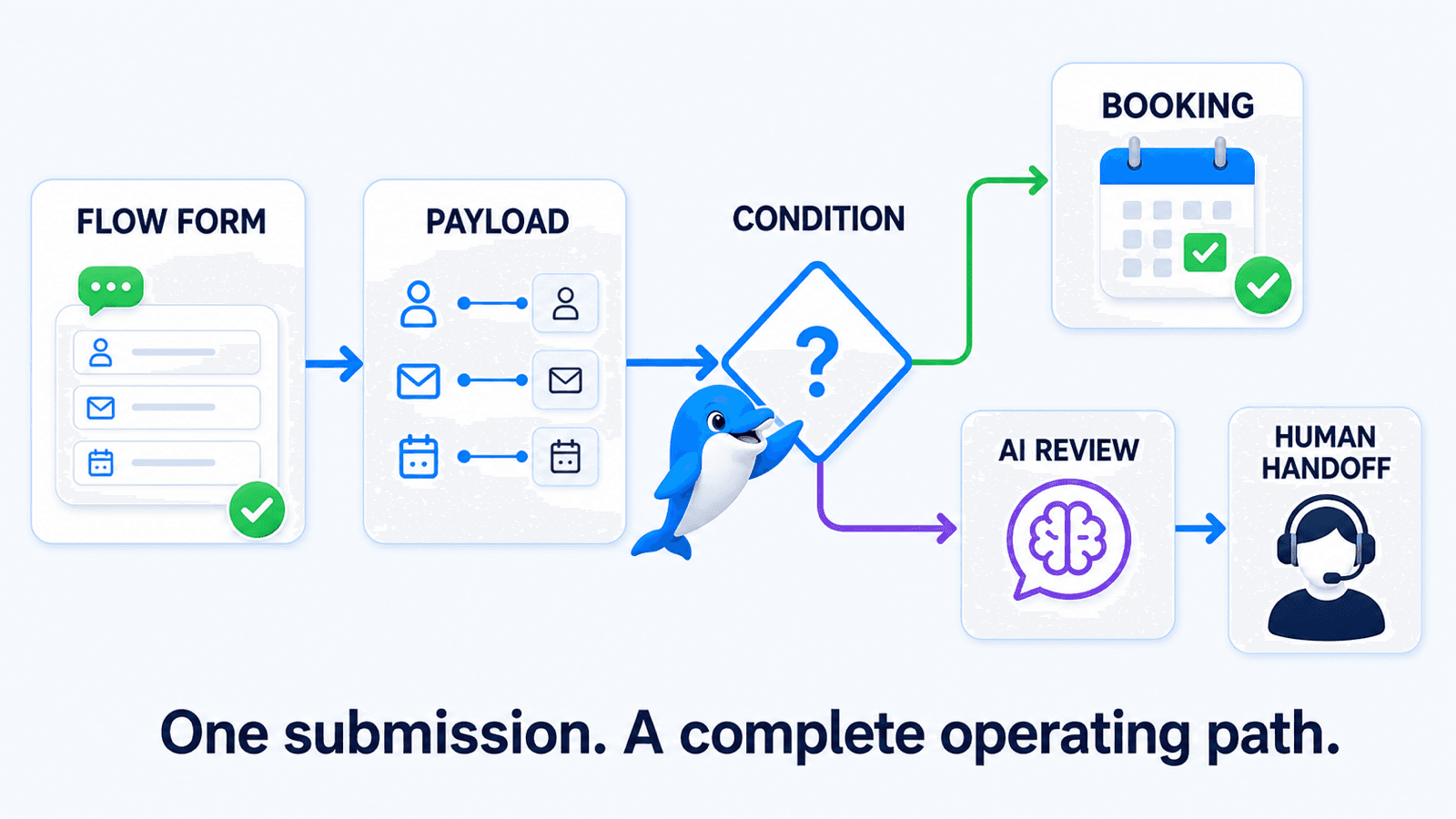
Consider a service business qualifying a new WhatsApp lead and offering an appointment.
The customer opens a Flow from the conversation.
The Flow collects name, contact details, service type and timing.
A conditional field appears only when that service needs an extra detail.
UChat saves the returned payload to named customer fields.
A visual condition routes a suitable request toward booking.
An unclear or high-value request goes to an AI review step or a human agent.
The customer receives a confirmation or a clear next-step message.
The form stays short. The surrounding automation handles the operational complexity.
WhatsApp Flow vs message template vs external form
These three tools solve different parts of a customer journey.
Option | Best fit | Customer experience | Main tradeoff |
|---|---|---|---|
WhatsApp message template | Notification, reminder or a short approved outbound prompt | Reads and responds in the chat | Limited space for structured data collection |
WhatsApp Flow | Registration, booking request, survey, support intake or quote request | Completes a structured task inside WhatsApp | Must work within supported Flow components and current platform rules |
External web form | Long content, custom interactions, file-heavy workflows or a full web checkout | Opens a separate web page | Adds a context switch and another surface to maintain |
A message template can include the button that opens a Flow. The Flow can collect the information. UChat can then decide what happens next.
Use an external form when the task needs a web experience that a WhatsApp Flow does not support. Do not force every workflow into the chat if a larger screen, complex document review or specialized checkout is essential.
How to create a WhatsApp Flow in UChat
UChat's current WhatsApp Flows Knowledge Base guide and WhatsApp training lesson document the product workflow. The exact labels can change, so check the current workspace while you build.
1. Start in the bot's Content area
Open the relevant chatbot, choose Content, then select WhatsApp Flow. Create a Flow, give it a descriptive name and choose the category that matches its purpose.
Names such as Lead qualification — AU services or Post-service feedback are easier to maintain than Form 1. The name should tell another team member what the Flow does and where it belongs.
2. Build the screens and fields
Add the welcome content, input fields and any additional screens. Use the input type that matches the data: an email field for email, a date field for a date and a dropdown when the customer must choose from a controlled list.
Mark only essential fields as required. Every required question adds friction and creates another reason to abandon the task.
3. Add conditional visibility where it removes work
UChat's conditional logic lesson demonstrates fields that appear according to a previous answer. In its phone-repair example, the selected operating system controls which device list appears.
For a lead-qualification Flow, the same pattern could reveal an installation question only after the customer selects a service that requires installation.
Use conditional fields to remove irrelevant questions, not to hide a maze of business rules. Keep parameter names clear and test every choice in Preview.
4. Pre-fill data the business already knows
UChat also documents initial values for supported Flow fields. If the customer name or email already exists in a UChat field, the surrounding message step can pre-populate it rather than asking the customer to type it again.
Pre-filling reduces repeated work, but the customer should still be able to verify the information where the experience allows it. Do not pre-fill sensitive data merely because it exists in another system.
Watch the UChat pre-population walkthrough for a product demonstration.
5. Preview, publish and test the Flow
Preview the screens from a customer's perspective. Check required fields, validation, conditional paths, button labels and the final completion state. Then follow the current publish and confirmation process shown in the workspace.
Publishing the form is not the end of the test. Send it through the connected WhatsApp Cloud path and confirm that a real submission reaches the expected UChat workflow.
6. Add the Flow to the surrounding automation
In UChat Flow Builder, add the WhatsApp Flow message step, select the published Flow and configure the message and call-to-action text. Save the returned payload to a JSON field or map supported inputs to customer fields according to the workflow.
Then build the completion and exception routes. A successful form might continue to booking. An incomplete or unusual request might trigger a clarification step. A complaint or high-value opportunity might be assigned to a person.
Watch UChat's official WhatsApp Flows deep dive to see lead-generation, appointment and feedback examples.
Add conditional logic without making the Flow confusing
Conditional logic is useful when one answer changes the next relevant question. It becomes harmful when every selection opens another hidden branch.
Use this rule: if the customer cannot explain why a field appeared, the condition is probably too clever.
For a service qualification Flow:
Ask for the service category first.
Show a product-model field only for services that need it.
Show a site-access question only for on-location work.
Keep commercial or sensitive exceptions outside the form and route them for review.
Test the positive and negative state of every condition. Confirm that hidden fields do not remain required, that parameter names match the logic and that the submitted payload is complete for each path.
What happens after the user submits?
This is where a useful Flow becomes a working customer journey.
Save and name the data
Decide which answers belong in customer fields, which belong in a JSON payload and which should not be retained. Use names that another operator can understand. service_type and preferred_date are safer than fields named after their position on a screen.
Branch on business rules
Use visual conditions to send each submission to the right next step. A request inside the service area with an available time can continue. An unsupported location can receive an accurate alternative. An incomplete or ambiguous answer can ask for clarification.
Call the business system
A production journey may need to check a calendar, create a CRM record, send a webhook or trigger another approved action. Keep the external action after the required data exists, and define what the customer sees if that system is unavailable.
Use AI for a bounded task
An AI Agent can summarize a submission, answer from approved business knowledge or collect a missing detail. Give it a narrow job and explicit escalation rules. Do not let an AI step invent availability, price or policy that should come from a source system.
Hand exceptions to a person with context
UChat Live Chat can receive conversations from automation so a team member can continue with the conversation and customer data available. The workflow should identify the destination team, urgency and reason for transfer.
A good handoff is not “someone will help.” It is “send this conversation to the sales team with the requested service, preferred time and unanswered pricing question.”
Pricing, requirements and limitations to check
Budget WhatsApp and UChat as separate cost layers.
WhatsApp Business Platform pricing currently charges delivered messages according to the recipient market and message category. The current categories are marketing, utility, authentication and service. Service messages, qualifying utility responses and free-entry windows have their own rules. Use Meta's live rate selector instead of copying one rate into a project plan.
UChat pricing covers the automation workspace. The public pricing page also notes that phone-based channel usage and connected AI providers can create third-party charges. Review the selected UChat plan, Meta message charges and any external service costs separately.
Before launch, confirm:
the WhatsApp Business Account, business verification and phone-number setup required for the intended feature;
the current UChat WhatsApp Cloud connection and Flow publishing path;
template category and approval requirements for any message that opens the Flow;
the supported Flow components for the task;
what personal data is necessary, where it is stored and how long it is retained;
the fallback when the customer abandons the Flow or an endpoint fails.
This article is not legal advice. Apply the privacy, consent and sector requirements relevant to the business and customer location.
WhatsApp Flow design checklist
Use this checklist before moving a Flow into production.
Give the Flow one clear task.
Ask only for data needed to complete or route that task.
Use the correct input type and validation.
Pre-fill known data only when it is appropriate and safe.
Show conditional fields only when they are relevant.
Make the completion state and next step explicit.
Map the submitted payload to named fields or a defined JSON structure.
Decide which system owns each piece of data.
Test success, abandonment, invalid input and endpoint failure.
Add an accurate path to a person.
Measure completion and the downstream business result separately.
Frequently asked questions
What is a WhatsApp Flow?
A WhatsApp Flow is a native, interactive experience inside a WhatsApp Business Platform conversation. It can collect structured information across one or more screens and return the submission to the business workflow.
How do I create a WhatsApp Flow?
You can create simple Flows through WhatsApp's tooling or use a partner, Flow Builder or API for more advanced experiences. In UChat, open the bot's Content area, select WhatsApp Flow, create and edit the screens, preview and publish it, then add it to the surrounding Flow Builder automation.
What can WhatsApp Flows be used for?
Common uses include lead capture, appointment requests, surveys, feedback, support intake and quote requests. Choose a task that benefits from structured answers inside the chat.
Can a WhatsApp Flow use conditional logic?
Yes. WhatsApp supports conditional experiences, and UChat's training demonstrates conditional visibility based on a previous selection. Keep branches short and test every state before launch.
What happens to the data after submission?
That depends on the implementation. In UChat, the workflow can save the payload, map values to customer fields, apply conditions, call another system, trigger follow-up and route exceptions to AI or a human team.
Can a human agent take over after a Flow?
Yes. The surrounding UChat automation can transfer the conversation to Live Chat with the prior messages and stored customer data available. Define when the handoff happens and what the receiving team needs.
How much do WhatsApp Flows cost?
There is no useful single evergreen number. WhatsApp Business Platform message charges vary by market, message category and current rules. UChat has a separate platform subscription, and connected services can have their own usage costs. Check both official pricing pages for the production configuration.
Build the complete path, not only the form
A well-designed WhatsApp Flow makes one customer task easier. A well-designed UChat workflow makes the answer useful.
Start a 14-day UChat trial, create one WhatsApp Flow, map its payload and test both the successful route and the human exception route before expanding it.
Sources reviewed
Sources and product details were reviewed on August 28, 2026. WhatsApp rules, message rates and product settings can change.
WhatsApp Flows are in-chat, task-focused experiences for the WhatsApp Business Platform. A customer can complete a form, choose an appointment, request a quote or submit feedback without leaving WhatsApp. UChat can then save the submitted data, branch the next automation step and send exceptions to an AI Agent or a human team.
The important design decision is not only what the form asks. It is what your business does with the answer.
This guide reflects the public WhatsApp and UChat documentation reviewed on August 28, 2026. Meta rules, pricing and product settings can change.
What is a WhatsApp Flow?
A WhatsApp Flow is a native interactive experience inside a WhatsApp conversation. It can contain text fields, dropdowns, radio buttons and multiple screens, then return structured answers when the customer finishes the task.
WhatsApp's official Flows guide describes a range from simple input forms to multi-screen workflows and more advanced experiences connected to a data-exchange endpoint. Official examples include lead generation, appointment booking and surveys.
That makes a Flow different from a long question-and-answer exchange. Instead of asking five separate questions in five messages, the business can present the right fields together and receive predictable data.
A WhatsApp Flow is the structured task inside the conversation. Your automation is the operating path before and after it.
UChat adds that surrounding path. Its visual Flow Builder can launch the Flow, save the returned payload, evaluate conditions, update customer data, call another system, continue a sequence or hand the conversation to a person.
When should you use WhatsApp Flows?
Use a WhatsApp Flow when the customer needs to complete a defined task and the business needs structured answers. Keep open conversation for questions that require explanation, judgment or an unusual response.
Task | Why a Flow fits | Minimum useful data | Typical next step | Handoff condition |
|---|---|---|---|---|
Lead qualification | Collects the same decision inputs from every lead | Need, location, timing and contact details | Score or route the lead | High-value, unclear or out-of-policy request |
Appointment request | Presents dates, service choices and time preferences together | Service, date, time and customer identity | Check availability and confirm | No matching slot or a special requirement |
Feedback or service review | Keeps rating and comments in one structured submission | Rating, comment and order or case ID | Save feedback and trigger follow-up | Complaint, low score or safety issue |
Support intake | Captures the facts an agent needs before review | Product, issue type, identifier and description | Route to the right support path | Account, payment or sensitive issue |
Quote or personalized offer | Collects the variables required to prepare the next response | Product, quantity, location and constraints | Calculate, retrieve or prepare an offer | Custom terms, negotiation or missing information |
The Flow should have one clear job. A lead form does not need to become a support center, a checkout and a survey in the same experience.
A practical UChat example
Consider a service business qualifying a new WhatsApp lead and offering an appointment.
The customer opens a Flow from the conversation.
The Flow collects name, contact details, service type and timing.
A conditional field appears only when that service needs an extra detail.
UChat saves the returned payload to named customer fields.
A visual condition routes a suitable request toward booking.
An unclear or high-value request goes to an AI review step or a human agent.
The customer receives a confirmation or a clear next-step message.
The form stays short. The surrounding automation handles the operational complexity.
WhatsApp Flow vs message template vs external form
These three tools solve different parts of a customer journey.
Option | Best fit | Customer experience | Main tradeoff |
|---|---|---|---|
WhatsApp message template | Notification, reminder or a short approved outbound prompt | Reads and responds in the chat | Limited space for structured data collection |
WhatsApp Flow | Registration, booking request, survey, support intake or quote request | Completes a structured task inside WhatsApp | Must work within supported Flow components and current platform rules |
External web form | Long content, custom interactions, file-heavy workflows or a full web checkout | Opens a separate web page | Adds a context switch and another surface to maintain |
A message template can include the button that opens a Flow. The Flow can collect the information. UChat can then decide what happens next.
Use an external form when the task needs a web experience that a WhatsApp Flow does not support. Do not force every workflow into the chat if a larger screen, complex document review or specialized checkout is essential.
How to create a WhatsApp Flow in UChat
UChat's current WhatsApp Flows Knowledge Base guide and WhatsApp training lesson document the product workflow. The exact labels can change, so check the current workspace while you build.
1. Start in the bot's Content area
Open the relevant chatbot, choose Content, then select WhatsApp Flow. Create a Flow, give it a descriptive name and choose the category that matches its purpose.
Names such as Lead qualification — AU services or Post-service feedback are easier to maintain than Form 1. The name should tell another team member what the Flow does and where it belongs.
2. Build the screens and fields
Add the welcome content, input fields and any additional screens. Use the input type that matches the data: an email field for email, a date field for a date and a dropdown when the customer must choose from a controlled list.
Mark only essential fields as required. Every required question adds friction and creates another reason to abandon the task.
3. Add conditional visibility where it removes work
UChat's conditional logic lesson demonstrates fields that appear according to a previous answer. In its phone-repair example, the selected operating system controls which device list appears.
For a lead-qualification Flow, the same pattern could reveal an installation question only after the customer selects a service that requires installation.
Use conditional fields to remove irrelevant questions, not to hide a maze of business rules. Keep parameter names clear and test every choice in Preview.
4. Pre-fill data the business already knows
UChat also documents initial values for supported Flow fields. If the customer name or email already exists in a UChat field, the surrounding message step can pre-populate it rather than asking the customer to type it again.
Pre-filling reduces repeated work, but the customer should still be able to verify the information where the experience allows it. Do not pre-fill sensitive data merely because it exists in another system.
Watch the UChat pre-population walkthrough for a product demonstration.
5. Preview, publish and test the Flow
Preview the screens from a customer's perspective. Check required fields, validation, conditional paths, button labels and the final completion state. Then follow the current publish and confirmation process shown in the workspace.
Publishing the form is not the end of the test. Send it through the connected WhatsApp Cloud path and confirm that a real submission reaches the expected UChat workflow.
6. Add the Flow to the surrounding automation
In UChat Flow Builder, add the WhatsApp Flow message step, select the published Flow and configure the message and call-to-action text. Save the returned payload to a JSON field or map supported inputs to customer fields according to the workflow.
Then build the completion and exception routes. A successful form might continue to booking. An incomplete or unusual request might trigger a clarification step. A complaint or high-value opportunity might be assigned to a person.
Watch UChat's official WhatsApp Flows deep dive to see lead-generation, appointment and feedback examples.
Add conditional logic without making the Flow confusing
Conditional logic is useful when one answer changes the next relevant question. It becomes harmful when every selection opens another hidden branch.
Use this rule: if the customer cannot explain why a field appeared, the condition is probably too clever.
For a service qualification Flow:
Ask for the service category first.
Show a product-model field only for services that need it.
Show a site-access question only for on-location work.
Keep commercial or sensitive exceptions outside the form and route them for review.
Test the positive and negative state of every condition. Confirm that hidden fields do not remain required, that parameter names match the logic and that the submitted payload is complete for each path.
What happens after the user submits?
This is where a useful Flow becomes a working customer journey.
Save and name the data
Decide which answers belong in customer fields, which belong in a JSON payload and which should not be retained. Use names that another operator can understand. service_type and preferred_date are safer than fields named after their position on a screen.
Branch on business rules
Use visual conditions to send each submission to the right next step. A request inside the service area with an available time can continue. An unsupported location can receive an accurate alternative. An incomplete or ambiguous answer can ask for clarification.
Call the business system
A production journey may need to check a calendar, create a CRM record, send a webhook or trigger another approved action. Keep the external action after the required data exists, and define what the customer sees if that system is unavailable.
Use AI for a bounded task
An AI Agent can summarize a submission, answer from approved business knowledge or collect a missing detail. Give it a narrow job and explicit escalation rules. Do not let an AI step invent availability, price or policy that should come from a source system.
Hand exceptions to a person with context
UChat Live Chat can receive conversations from automation so a team member can continue with the conversation and customer data available. The workflow should identify the destination team, urgency and reason for transfer.
A good handoff is not “someone will help.” It is “send this conversation to the sales team with the requested service, preferred time and unanswered pricing question.”
Pricing, requirements and limitations to check
Budget WhatsApp and UChat as separate cost layers.
WhatsApp Business Platform pricing currently charges delivered messages according to the recipient market and message category. The current categories are marketing, utility, authentication and service. Service messages, qualifying utility responses and free-entry windows have their own rules. Use Meta's live rate selector instead of copying one rate into a project plan.
UChat pricing covers the automation workspace. The public pricing page also notes that phone-based channel usage and connected AI providers can create third-party charges. Review the selected UChat plan, Meta message charges and any external service costs separately.
Before launch, confirm:
the WhatsApp Business Account, business verification and phone-number setup required for the intended feature;
the current UChat WhatsApp Cloud connection and Flow publishing path;
template category and approval requirements for any message that opens the Flow;
the supported Flow components for the task;
what personal data is necessary, where it is stored and how long it is retained;
the fallback when the customer abandons the Flow or an endpoint fails.
This article is not legal advice. Apply the privacy, consent and sector requirements relevant to the business and customer location.
WhatsApp Flow design checklist
Use this checklist before moving a Flow into production.
Give the Flow one clear task.
Ask only for data needed to complete or route that task.
Use the correct input type and validation.
Pre-fill known data only when it is appropriate and safe.
Show conditional fields only when they are relevant.
Make the completion state and next step explicit.
Map the submitted payload to named fields or a defined JSON structure.
Decide which system owns each piece of data.
Test success, abandonment, invalid input and endpoint failure.
Add an accurate path to a person.
Measure completion and the downstream business result separately.
Frequently asked questions
What is a WhatsApp Flow?
A WhatsApp Flow is a native, interactive experience inside a WhatsApp Business Platform conversation. It can collect structured information across one or more screens and return the submission to the business workflow.
How do I create a WhatsApp Flow?
You can create simple Flows through WhatsApp's tooling or use a partner, Flow Builder or API for more advanced experiences. In UChat, open the bot's Content area, select WhatsApp Flow, create and edit the screens, preview and publish it, then add it to the surrounding Flow Builder automation.
What can WhatsApp Flows be used for?
Common uses include lead capture, appointment requests, surveys, feedback, support intake and quote requests. Choose a task that benefits from structured answers inside the chat.
Can a WhatsApp Flow use conditional logic?
Yes. WhatsApp supports conditional experiences, and UChat's training demonstrates conditional visibility based on a previous selection. Keep branches short and test every state before launch.
What happens to the data after submission?
That depends on the implementation. In UChat, the workflow can save the payload, map values to customer fields, apply conditions, call another system, trigger follow-up and route exceptions to AI or a human team.
Can a human agent take over after a Flow?
Yes. The surrounding UChat automation can transfer the conversation to Live Chat with the prior messages and stored customer data available. Define when the handoff happens and what the receiving team needs.
How much do WhatsApp Flows cost?
There is no useful single evergreen number. WhatsApp Business Platform message charges vary by market, message category and current rules. UChat has a separate platform subscription, and connected services can have their own usage costs. Check both official pricing pages for the production configuration.
Build the complete path, not only the form
A well-designed WhatsApp Flow makes one customer task easier. A well-designed UChat workflow makes the answer useful.
Start a 14-day UChat trial, create one WhatsApp Flow, map its payload and test both the successful route and the human exception route before expanding it.
Sources reviewed
Sources and product details were reviewed on August 28, 2026. WhatsApp rules, message rates and product settings can change.